One AI Agent to Manage Your Family Calendars, Groceries, and Household Chaos
On this page
I’ve watched families solve the same coordination problem a dozen different ways. Shared Google Calendars that one partner never checks. A whiteboard in the kitchen that becomes outdated by Thursday. Group texts that bury the dentist appointment under seventeen meme replies. Everyone knows the system is broken. Nobody has time to fix it.
A recent U.S. survey put a number on it: parents spend an average of 17 hours per week coordinating family schedules and logistics. That’s nearly a part-time job — one where you do nothing but check calendars, text your partner, and answer ‘wait, is that this Saturday or next Saturday?’
There’s now a setup that changes this. Not a better calendar app. Not another subscription. A running AI agent — the kind I write about over at AI automation — that watches your household passively and acts before you ask. The part that genuinely surprised me when I dug into how people are actually using this: the biggest unlock isn’t the feature you configure. It’s the one that fires without a prompt. I’ll explain that in a minute.
Why Five Calendars Is a Real Infrastructure Problem
Most families are running five or more calendars across completely different platforms. Work calendar sits behind corporate security — no sharing allowed. The school calendar arrived as a PDF in September and lives forgotten in a Downloads folder. Camp schedules came via email. Your partner’s personal calendar is on Apple, yours is on Google, and the ‘shared family calendar’ everyone agreed to use has six events from 2024 and nothing else.
Manually checking each one every morning is unsustainable. Copying events across calendars works until one slips through. It always slips through.
The grocery problem is its own layer of chaos. ‘How much milk do we have?’ requires physically checking the fridge, then the basement pantry, then texting back. The answer arrives 20 minutes after your partner already bought milk. Meanwhile, an appointment confirmation came in via text, sat there unread, and never made it to any calendar — let alone with a buffer for driving time.
How a Household AI Agent Actually Works
The setup I’m going to walk through is built on OpenClaw, an open-source platform for running personal AI agents. Think of it as the infrastructure layer — it handles scheduling, message monitoring, file access, and calendar connections. You configure the behavior once; the agent runs continuously from there.
There are four things a household agent does well. Each one is useful on its own. Together, they replace most of the cognitive overhead of running a household.
- Morning briefing: Every day at 8 AM, the agent pulls from every calendar source — Google, Apple, shared family, school PDFs, even emailed invitations — and delivers a single consolidated summary to your family Telegram or Slack channel. Today’s events, a 3-day lookahead, weather context for anything outdoors, and any new events added since yesterday.
- Ambient message monitoring: The agent watches your iMessage conversations every 15 minutes. When it spots an appointment confirmation, a meeting request, or a schedule change, it creates the calendar event automatically — including 30-minute driving buffers before and after. You see a confirmation message. The calendar is already updated.
- Household inventory: A running pantry log stored in a simple file on your machine. Either partner can ask ‘do we have butter?’ from anywhere and get a real answer with location and quantity. The log updates when you text ‘bought milk’ or snap a photo of your fridge after a grocery run.
- Grocery coordination: The agent tracks what’s running low, deduplicates ingredients when you’re planning multiple recipes, and generates a shopping list on demand. No more buying a third bottle of olive oil because nobody checked.
Photo input deserves a specific mention. This is more useful than it sounds. Snap a photo of the school calendar posted on the fridge — the agent reads it and extracts the events. Same with a freezer inventory or a grocery receipt. Typing everything in is the friction that kills every system. The photo shortcut removes it.
The Part Nobody Talks About: Ambient vs. Active
Here’s the thing I promised to explain. Most tools require you to ask. You open the app, type your question, get an answer. That’s useful, but it’s still a task — one you have to remember to do.
The unlock with this setup is that the agent acts before you ask. The clearest example: someone’s wife received a dental appointment confirmation via text. She didn’t do anything with it. The agent detected the appointment pattern in the message, created the calendar event, added 30-minute drive buffers before and after, and sent a confirmation to the family channel. All of it happened without a prompt. The response from the person who set it up: ‘I didn’t ask it to do that. It just knew that’s what I’d want.’
That’s the difference between a tool and an agent. Tools wait for input. Agents monitor context and act on it. The 15-minute heartbeat that checks your messages for appointment patterns is what makes this ambient rather than active — and ambient coordination is what actually reduces the cognitive load of running a household.
If you’re curious how people are deploying agents like this day-to-day, how people actually use personal AI agents in 2026 has a broader picture. The household coordination pattern is one of the most common.
Setting Up Your Household Agent on OpenClaw
Before the config details, the hardware question. If you’re on a Mac, a home Mac Mini is the best place to run this. Always-on availability, native iMessage access, and Apple Calendar integration all come standard. If you’re running Windows or Linux, you’ll lose iMessage monitoring — which is a real limitation I’ll cover in the tradeoffs section.
You’ll need four things connected to your OpenClaw instance:
- Calendar access: Google Calendar via OAuth (read-only to start), Apple Calendar via the iCal protocol, and a shared family Google Calendar
- iMessage skill: This is macOS-only — it gives the agent read access to your message threads for ambient monitoring
- Telegram or Slack: A shared family channel where the agent posts its morning briefings and sends action confirmations
- File system access: A simple folder on your machine where the agent maintains the household inventory file
The calendar aggregation config looks roughly like this:
## Calendar Sources
On morning briefing (8:00 AM):
1. Fetch Google Work Calendar (read-only OAuth)
2. Fetch shared Family Google Calendar
3. Fetch partner's calendar (shared view)
4. Check ~/Documents/school-calendars/ for new PDFs → OCR and extract events
5. Check recent emails for calendar attachments or event invitations

Compile into single briefing:
- Today's events (all calendars, color-coded by source)
- 3-day lookahead for conflicts
- New events added since yesterday
- Weather context for outdoor events

Deliver via Telegram family channel.
The message monitoring heartbeat runs separately on a 15-minute loop:
## Message Monitoring (HEARTBEAT.md)

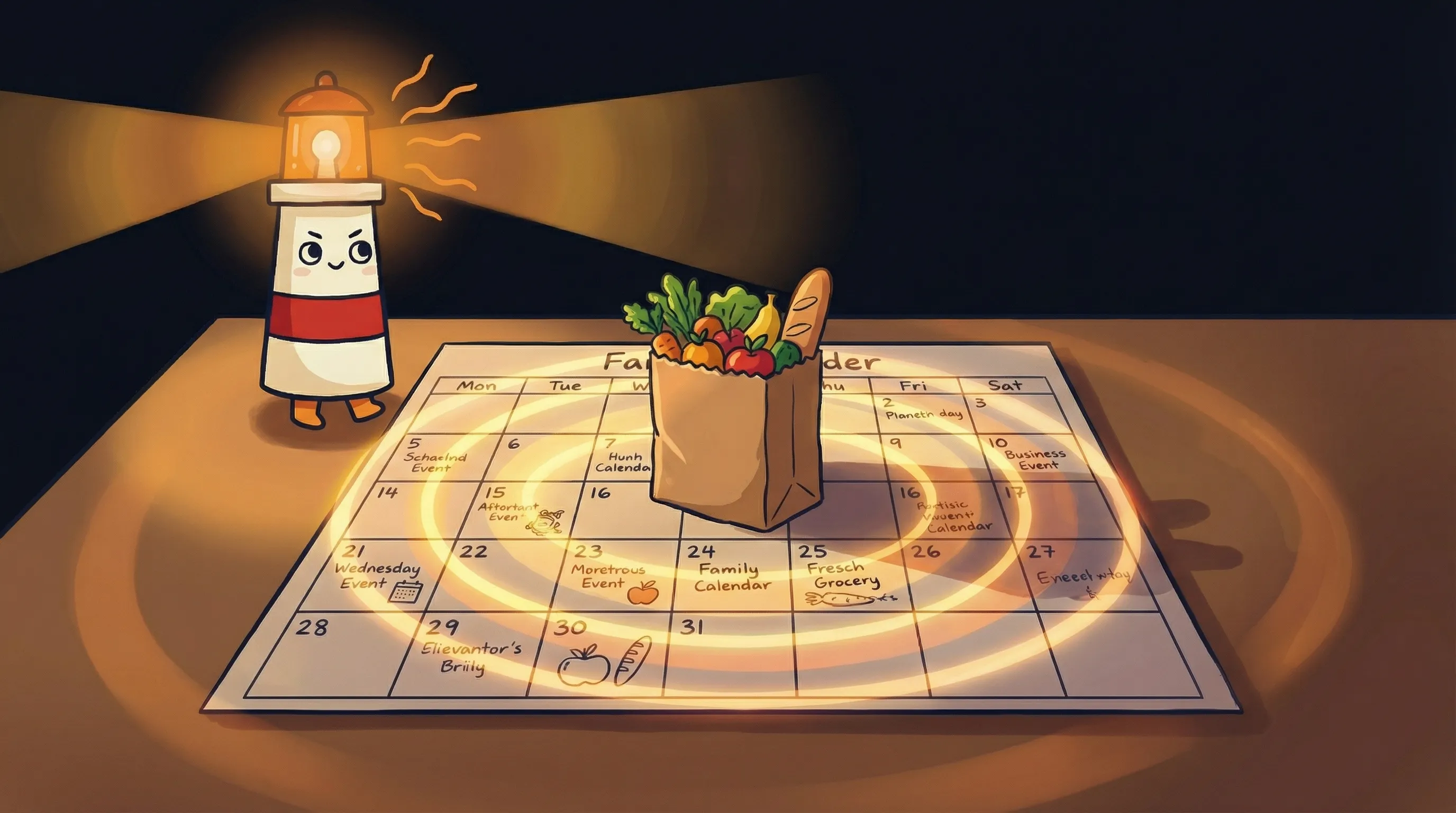
*Beacon says: one light, one plan — your whole household finally on the same page.*
Every 15 minutes:
1. Check new iMessages across all conversations
2. Detect appointment-like patterns:
- "Your appointment is confirmed for..."
- "Can we meet on [date] at [time]?"
- "Practice moved to Saturday at 3pm"
3. When detected:
- Create calendar event
- Add 30-minute driving buffer before AND after
- Send confirmation to family Telegram
- Add partner invite if relevant
4. Detect commitment patterns:
- "I'll send that over by Friday"
- "Let's do dinner next week"
→ Create calendar hold or reminder
Pantry tracking uses a simple JSON inventory file that either partner can update by text or photo:
## Pantry Tracking
Maintain ~/household/inventory.json:
- Item name, quantity, location (fridge/pantry/basement)
- Last updated timestamp
- Low-stock threshold

Update methods:
- Photo: User sends photo of fridge → vision model extracts items
- Text: "We're out of eggs" / "Bought 2 gallons of milk"
- Receipt: Photo of grocery receipt → update inventory

Query via Telegram:
- "Do we have butter?" → location + quantity
- "What's running low?" → items below threshold
- "Generate grocery list" → low-stock + recipe ingredients
Start read-only. This is the most important setup recommendation. Run the agent in observation mode for the first week — calendar reading and message monitoring only, no write actions. Watch the morning briefings. Check the appointment detections. When you trust what it’s seeing, enable event creation. Earn the write permissions gradually.
The shared Telegram channel is worth setting up from day one even in read-only mode. Both partners seeing what the agent is noticing builds the trust that makes write actions feel safe later.
Where This Setup Falls Apart
- iMessage is macOS-only. If you’re running this on a Linux server or Windows box, ambient message monitoring won’t work. You can substitute Telegram or WhatsApp for inbound messages, but it requires both partners to actively use that channel — which reduces the ambient quality of the whole setup.
- Inventory drift is real. The pantry log is only as accurate as the updates it receives. If someone grabs the last eggs without texting ‘used the eggs,’ the inventory is wrong. The photo-update habit helps, but it requires consistency from everyone in the household.
- Photo OCR has limits. Handwritten school calendars, faded receipt paper, and poorly-lit freezer photos all reduce accuracy. The vision model handles most standard cases well — but verify anything critical (especially dates and times from scanned documents) before trusting it.
- The trust-building phase takes time. For the first week or two, the agent will flag things you don’t want actioned and miss things you do. Tuning the appointment detection patterns is an ongoing calibration, not a one-time config.
- Work calendar restrictions vary. Some corporate Google Workspace setups restrict OAuth access for third-party apps. If read-only calendar access is blocked by your IT policy, you’ll need a workaround — typically exporting a shareable iCal link where available.
How to Know It’s Actually Working
- The morning Telegram briefing arrives before 8:05 AM and includes events from all configured calendar sources — not just one.
- When you receive an appointment confirmation text, a calendar event appears within 15 minutes with driving buffers attached, and a confirmation message shows up in the family channel.
- Either partner can ask ‘do we have [item]?’ at any time and get a response that matches reality at least 80% of the time.
- The grocery list generated by the agent matches what you’d have written yourself — and occasionally catches something you’d have forgotten.
- School calendar events from PDFs or photos are appearing in the family calendar without anyone manually typing them in.
- Both partners are reading the morning briefing most days — which means the format is useful enough to check.
Your Monday Morning Household Agent Checklist
If you want to start this week, here’s the sequence that works:
- Create a shared Telegram channel and add both partners. This is your family command center. The agent will post every action here before you enable write permissions — so both partners see everything from day one.
- Set up OpenClaw on your Mac Mini (or Mac laptop if that’s what you have). The iMessage skill only runs on macOS. If you’re on Linux or Windows, skip iMessage and use Telegram as your inbound message source instead.
- Connect your calendars in read-only mode first. Google Calendar via OAuth, Apple Calendar via iCal share URL, shared family calendar. Do not enable event creation yet — give yourself 5-7 days of monitoring-only to verify what the agent is detecting.
- Configure the 8 AM morning briefing with a 3-day lookahead. Run it for three mornings and check whether it matches what you’d have looked up manually. If it does, your calendar connections are solid.
- Enable the 15-minute message monitoring heartbeat. Watch what it flags in the Telegram channel over the next 48 hours. If the appointment detection is catching real appointments and not generating false positives more than 2-3 times per day, enable calendar write access.
- Photograph your fridge and pantry once to initialize the inventory file. Text ‘low on [item]’ when something runs out, and take a quick photo after every grocery run. The habit takes about 2 weeks to stick — after that it becomes automatic.
- If you hit a corporate calendar restriction, check whether your work calendar offers a shareable iCal export URL. Many Google Workspace admins allow this even when OAuth is blocked. It’s read-only, which is all you need.
Budget around 3-4 hours for initial setup. The first morning briefing that arrives before you’re out of bed, correctly listing everything happening that day across all five calendars, is when it clicks.
For a faster path to your first running agent, the 15-minute agent setup guide covers the OpenClaw basics before you layer in the household-specific config.
What This Setup Actually Changes About Your Week
- Parents spend an average of 17 hours per week on family coordination. A running household agent handles the information retrieval portion of that — the ‘what’s happening today?’, ‘did that appointment make it to the calendar?’, ‘do we have enough of X?’ questions that add up to hours of interruption per week.
- The ambient monitoring feature — detecting appointments in texts and creating calendar events automatically — is the one that consistently surprises people. Most users don’t realize how many confirmations they were receiving and not acting on until they see the agent catch them.
- Photo-based input (fridge contents, school calendars, grocery receipts) is the fastest path to keeping inventory current. Typing is the friction that kills every manual system. Removing it changes whether the system survives contact with real family life.
- Start read-only. Every person who has deployed this successfully gave the agent a monitoring-only week before enabling write actions. The ones who skipped this step spent three days undoing phantom calendar events. The calibration period isn’t optional — it’s how you build a system both partners will trust.
- This works on a personal AI assistant model — one agent, your household data, running on your hardware. Not a subscription app that aggregates everyone’s family data on a shared server.
Frequently Asked Questions
Do both partners need to be technical to use this?
One person sets it up; both use it. The setup requires configuring OpenClaw, connecting calendar APIs, and writing the monitoring instructions — that’s a few hours of technical work. After that, both partners interact through Telegram or Slack using plain language. The non-technical partner never touches a config file.
What if we use Android instead of iPhone?
The iMessage skill is macOS-only, so Android users lose the ambient text monitoring feature. The workaround is routing your household communication through Telegram or WhatsApp instead. The agent can monitor those channels for appointment patterns using different integrations — it’s slightly more intentional than iMessage monitoring, but still far less manual than current methods.
How does the agent handle appointment detection errors?
Every action the agent takes is posted to your shared Telegram channel before — or simultaneously with — the calendar event being created. In the first week (read-only mode), you’ll see what it would have done without it actually happening. After you enable write access, you can delete false-positive events and tune the detection patterns. Most people report the error rate dropping significantly within the first two weeks of calibration.
Is my household data going to a third-party server?
OpenClaw runs locally on your machine. The inventory file, calendar data, and message monitoring all stay on your hardware. The agent does make API calls to your AI provider (such as OpenAI or Anthropic) to process photos and understand messages — those requests include the relevant content. If privacy is a concern, look at locally-hosted models as an alternative, though photo OCR quality will vary.
Are there pre-built household agent apps if I don't want to configure this myself?
Yes. Nori launched in February 2026 and reached more than 100,000 families within its first two months in private beta — it handles calendar aggregation and photo-based event creation through a polished app (rated 4.8 out of 5 stars on the App Store). Ohai.ai launched in January 2024 and handles multi-calendar coordination and reminders. These are good starting points. The OpenClaw approach gives you more control and works across your existing messaging platforms, but the app-based options require zero technical setup.
Sources
- OpenClaw Family Calendar Household Assistant Use Case (GitHub)
- Nori Family AI — Business Insider Markets
- Nori Family AI — Apple App Store
- Ohai.ai — Parents.com Coverage
- Calendara Blog — AI-Powered Family Hub
- Kora Home AI
- OpenClaw Showcase — Calendar Testimonials
- Sparkry AI — 24 Hours with OpenClaw
- Hacker News Discussion — Calendar Aggregation