How to Set Up AI Customer Follow-Ups Without Letting It Send the Wrong Email
On this page
What’s the real reason you haven’t handed follow-ups to AI yet? It’s not because you think AI can’t write a decent email. You’ve seen it do that. The fear is different: AI sends something to the wrong person, or at the wrong moment, or referencing a conversation you handled differently than the notes suggest. And you find out after the fact.
That fear is legitimate. But the fix isn’t ‘don’t use AI for follow-ups.’ The fix is a system where the AI drafts and you approve — every time, before anything leaves your outbox. Nothing gets sent, posted, or changed externally until you’ve seen it.
If you’ve been exploring AI automation for your business, this is the follow-up piece — the specific setup that makes customer follow-ups faster without letting AI run loose in your inbox. In a moment, I’ll show you the part most people miss: why bad AI follow-up is almost never a writing problem.
What You’ll Have When You’re Done
Thirty minutes from now, you’ll have an AI customer follow-up workflow that does three things:
Context-aware drafts
The AI reads your customer notes, prior emails, and any files you've given it — then drafts a follow-up based on that actual history, not a generic template.
Approval gate before sending
Nothing reaches your customer until you've reviewed and approved the draft. The AI queues it for your eyes first, every time.
Rules that decide when to stop
Human-defined rules determine whether a follow-up should go out at all — the AI handles the drafting after those rules are satisfied, not before.
You won’t have an autonomous system firing emails while you sleep. That’s intentional. The goal here is speed and consistency — not handing over the wheel.
Prerequisites: What to Have Ready Before You Start
This setup works with any AI assistant for small business that supports document context and approval-gated drafting. Before you begin:
- A BrainRoad account (or any AI assistant that supports file context and draft review before sending)
- Your standard follow-up scenarios written down — even rough notes work. Examples: ‘quote sent, no reply after 3 days’ or ‘call completed, next step is proposal’
- 2–3 sample customer records: name, recent conversation summary, any relevant files (quotes, contracts, intake forms)
- Your follow-up rules: how many touches before you stop, what triggers a follow-up, when to hand off to manual handling
- 15 minutes of uninterrupted time for the first configuration
How to Set Up AI Follow-Up Emails: Step by Step
Work through these in order. Each step builds on the last.
Step 1 — Feed the AI your customer context (10 minutes)
The most common reason AI follow-up emails miss the mark has nothing to do with the AI. It’s that the AI had no real context to work from. You pasted in one line, it wrote a generic draft, you sent it, and the customer felt like a ticket number.
For each customer or lead you want the AI to help with, give it:
- A brief history file: who they are, what they’ve asked for, where things stand
- Any prior email threads or call notes (a paste into a document is fine)
- The specific next step you’re trying to take with this person
- Any constraints: don’t mention price until they bring it up, they prefer short emails, they’re in a different time zone
This is what separates a context-aware AI follow-up email from a mail-merge. The AI is only as useful as the context you give it — and unlike a human assistant, it will work from exactly what you provide, no more and no less.
Step 2 — Write your trigger rules before touching any drafts (5 minutes)
This step is where most people skip ahead and regret it. Write down your sending rules first, before you let the AI draft anything.
Your rules should answer four questions:
- What triggers a follow-up? (e.g., ‘quote sent with no reply after 3 business days’)
- What stops one? (e.g., ‘customer replied, deal closed, customer said no, or 3 touches with no response’)
- Who takes over manually? (e.g., ‘if the customer has asked a specific question or expressed frustration’)
- What’s the maximum number of AI-drafted follow-ups before I step in personally?
A Belkins study of 16.5 million cold emails found that sending 4 or more follow-up emails triples the unsubscribe rate and more than triples spam-flag risk. Most spammy or mistimed AI follow-up is a rules problem — timer-only sequences that ignore customer state create duplicate messages and bad timing regardless of how well the email is drafted. Your rules are the guardrail.
Step 3 — Configure draft mode, not send mode (5 minutes)
This is the non-negotiable part of the setup.
Your AI assistant should be in draft-only mode during initial setup. That means it proposes a follow-up email, routes it to you for review, and sends nothing until you explicitly approve. The biggest failure mode when setting up AI email automation is over-automating too early — granting send permissions before you’ve validated the system on read-only or draft-review tasks.
In BrainRoad, this is the default. The AI reads your customer context and business files, drafts the follow-up, and asks before anything gets sent. You see the draft. You edit if needed. You approve or discard. Nothing external happens without that step.
Step 4 — Run your first AI follow-up email draft (5 minutes)
Pick one real customer situation. One you’d normally handle manually. Give the AI the context you assembled in Step 1, describe the scenario, and ask it to draft a follow-up.
When the draft comes back, check for three things:
- Does it reference the actual conversation, not a generic situation?
- Does the tone match how you normally write to this customer?
- Are there any specific commitments, pricing mentions, or promises you didn’t intend to make?
The third check matters most. Treat the AI as a drafting assistant working from your notes — not as a source of truth. Done badly, AI follow-up creates vague promises, wrong details, and a paper trail you’ll regret. That first review is where you calibrate.
Step 5 — Expand to your other follow-up scenarios (5 minutes)
Once you’ve validated the first draft, replicate the setup for your other common scenarios. Most small business owners have 3–5 recurring follow-up types:
- Quote sent, no reply
- Discovery call completed, next step is a proposal
- Proposal delivered, no decision after 5 business days
- New customer onboarding check-in
- Overdue invoice reminder
For each one: write the trigger rule, add the relevant customer context, confirm draft mode is on. That’s the full setup for each scenario.
Why AI Follow-Up Emails Fail (It’s Not the Writing)
Here’s the thing most AI follow-up guides won’t tell you: the draft isn’t usually the problem.
Most spammy or mistimed AI follow-up is a rules problem. Timer-only sequences — ‘send 3 days after quote, then 7 days, then 14 days’ — don’t know whether the customer already replied, moved to a different stage, or asked you to stop. The AI writes a perfectly reasonable email and the sequence fires it at exactly the wrong moment. The customer gets annoyed. You look careless.
The safer model: use rules to decide whether a message should go out at all, when to stop, and who should take over manually. Use AI only to draft context-aware messages after those rules are satisfied. This distinction — rules first, drafting second — is what separates an AI assistant for small business that helps you from one that creates cleanup work.
Between 40% and 60% of B2B deals end in ‘no decision’ — not lost to competitors, just abandoned because follow-up stalled. 80% of sales require five or more touches. But 48% of reps never make a second follow-up attempt. The gap isn’t a writing problem. It’s a scattered-context problem: the information needed to send the right message lives across inboxes, notes, and documents, and pulling it together takes longer than just doing it tomorrow.
That’s the actual thing AI solves here. Not better prose. Consistent, context-aware action on the follow-ups that would otherwise slip.
If you want to see how this connects to the broader question of what AI helpers can do in your business, the AI for Entrepreneurs guide covers the one-person team angle well.
What to Watch Out For: Common Setup Mistakes
Most AI customer follow-up problems trace to a short list of setup errors.
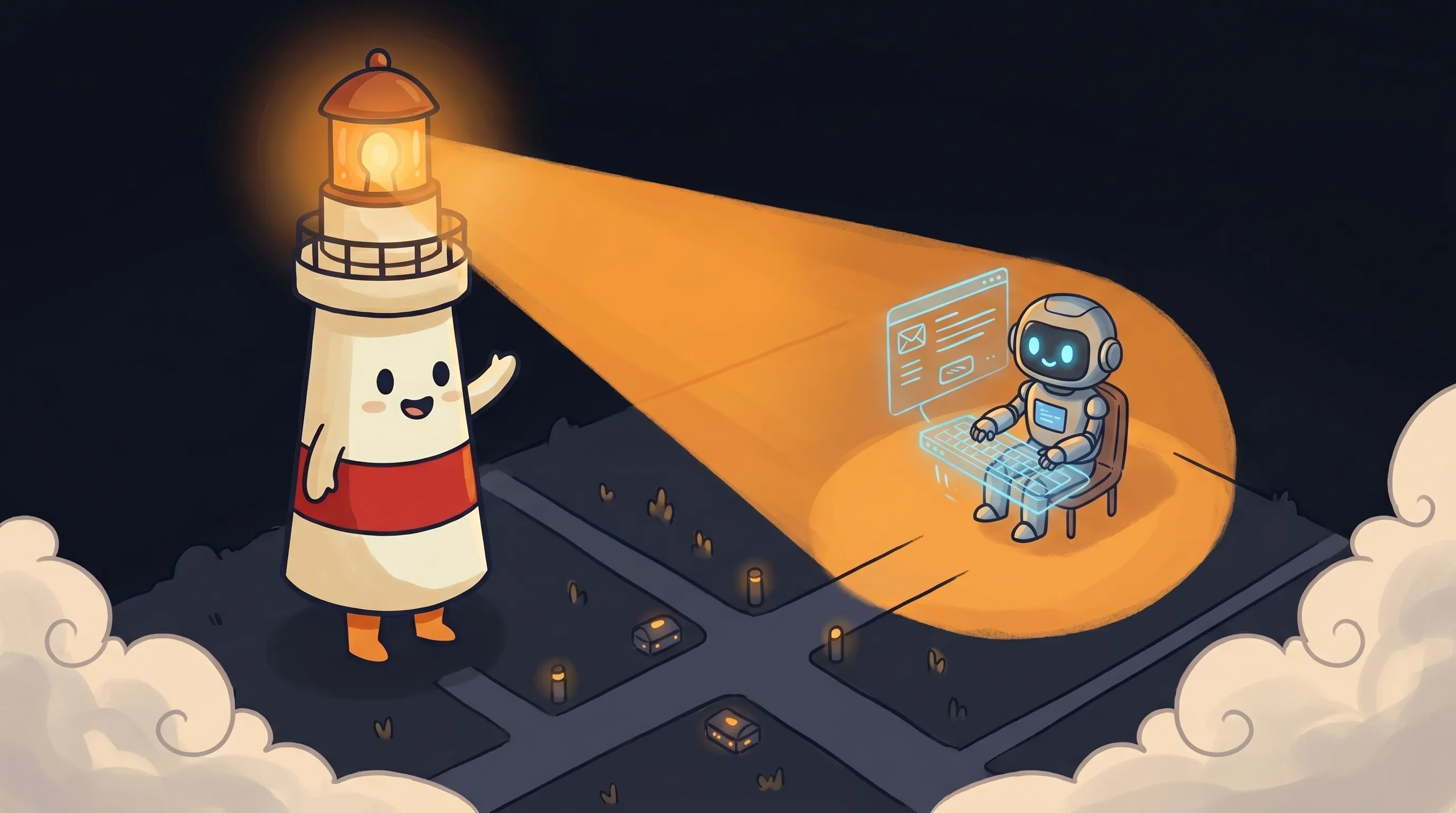 Beacon says: a little oversight goes a long way — always know what your AI is about to say before it says it.
- Vague triggers. ‘When a lead goes cold’ isn’t a rule the AI can act on. ‘No reply after 3 business days from a customer whose quote total exceeds $500’ is.
- No stop rules. If you only define when to send and never define when to stop, the system will keep going. Set a maximum number of touches — most workflows stop at 3.
- Voice calibration skipped. The AI will write in a neutral professional tone unless you give it examples of how you actually write. Paste in 2–3 real emails you’ve sent and tell it to match that style.
- Granting send permission too early. Run draft-only mode for at least 2 weeks before considering any automated sending. Validate accuracy first.
- Using a tool that processes emails outside your inbox. Customer communications should stay in your environment, processed with appropriate data handling. Generic AI chat tools forget all context between sessions — they’re only as useful as what you paste in each time.
How to Know Your AI Follow-Up Setup Is Working
After your first week, check these:
- Every draft the AI produced referenced specific customer details — not generic filler. If you’re seeing ‘as we discussed’ with no indication of what was actually discussed, your context files need more detail.
- Your approval step took under 2 minutes per draft. If you’re rewriting most of the email, the AI’s voice calibration is off — give it more example emails.
- No drafts were sent without your review. If you find an email in your sent folder that you didn’t explicitly approve, your tool is not in proper draft mode.
- You followed up on at least 80% of the scenarios your rules defined. The whole point is consistency — if drafts are sitting unreviewed for days, simplify the workflow.
- No customer replied with confusion about a commitment you don’t remember making. If they did, your context files are missing constraints — go back to Step 1.
Your First-Week AI Follow-Up Checklist
This is the setup in the right order, with realistic time estimates.
- Write your follow-up rules before anything else (15 minutes). Define triggers, stop conditions, maximum touches (start with 3), and manual handoff criteria. No exceptions — rules first.
- Create context files for your top 5 active leads or customers (10 minutes each). Include conversation history, current status, next step, and communication preferences.
- Confirm your AI assistant is in draft-only mode (2 minutes). No automated sending enabled at any level.
- Run one draft per scenario and review it against your 3-point checklist: real context, right tone, no unintended commitments (5 minutes per draft).
- If draft accuracy hits 80% or better after 5 reviews, continue. If not, add more context to your customer files and recalibrate tone (repeat Step 4).
- After 2 weeks of draft review with no surprises, you can evaluate whether any scenario is low-risk enough for a draft-and-queue workflow — but start with full review.
- Log what the AI drafted vs. what you actually sent. After 30 days, that delta tells you exactly where the context or calibration gaps are.
87% of sales professionals now use AI to help with sales tasks, according to HubSpot’s State of Sales research. The ones getting value from it aren’t the ones who automated the most — they’re the ones who figured out where AI drafting saves the most time and kept a human hand on the send button.
Start with read-only and draft review for the first two weeks. If your draft accuracy holds above 80%, expand to more scenarios. Most people reach a comfortable steady-state within a month — not because the AI became autonomous, but because the context files got good enough that the drafts rarely need editing.
What This Means for Your Follow-Up Workflow
- AI customer follow-up works safely when it’s context-aware and approval-gated — draft first, send only after review
- Most failed AI follow-up setups are rules problems, not writing problems: timer-only sequences that ignore customer state create the wrong messages at the wrong time
- A Belkins study of 16.5 million cold emails found that 4+ follow-ups triples unsubscribe rates — your rules need a stop condition
- Treat the AI as a drafting assistant working from your notes, not as a source of truth — always review before anything with a specific commitment goes out
- Run draft-only mode for at least 2 weeks before considering any automated sending; validate accuracy before expanding permissions
- Between 40–60% of B2B deals die because follow-up stalls, not because competitors win — consistent, context-aware drafts solve the consistency problem without creating a new risk
Frequently Asked Questions
What's the difference between AI customer follow-up and a regular email sequence?
A regular email sequence fires on a timer regardless of what the customer does. AI customer follow-up reads the actual context — prior emails, call notes, files — and drafts a message specific to that person’s situation. The other key difference: a well-configured AI follow-up workflow includes approval gates and stop rules, so you review before anything sends and the system knows when to stop.
Will the AI ever send an email without my approval?
Not if your tool is correctly configured in draft-only mode. In BrainRoad’s default setup, the AI reads context and drafts the message, but nothing reaches your customer until you approve. If any tool you’re evaluating defaults to automatic sending, insist on enabling draft review before you go live.
What if the AI references the wrong details in a draft?
That’s a context file problem, not an AI problem. Go back to the customer’s context file and add the missing details — what was actually discussed, what was agreed, what the constraints are. The AI drafts from exactly what you give it. The more specific your context files, the more accurate the drafts.
How many follow-ups should my AI assistant send before stopping?
Set a maximum of 3 touches as your starting rule. A Belkins study of 16.5 million cold emails found that 4 or more follow-ups triples unsubscribe rates and more than triples spam-flag risk. Define explicit stop conditions — customer replied, deal closed, customer said no, or maximum touches reached — before you configure any follow-up workflow.
Do I need a CRM to set this up?
No. A CRM helps, but the core setup works with customer context files you create manually — a document per customer with conversation history, current status, and next steps. The AI reads those files to draft follow-ups. You can integrate CRM data later once the workflow is validated.
Sources
- AI Assistant vs Virtual Assistant: Small Business Guide — BrainRoad
- AI Employee Approval Workflows: Governed Execution Guide — BrainRoad
- AI Email Agents: How to Set Up & Use Them in 2026 — Icebox
- Automate Customer Follow-Up Without Spamming — iDarb
- AI Follow-Up Emails: How to Write Them in 2026 — Prospeo
- How to Automate Customer Follow-Up Workflows with AI — Neuwark
- Automate Customer Follow-Up Workflows — NewMail AI
- AI Workflow to Generate Follow-Up Emails — Jamy AI