Build a Personal Knowledge Base Your AI Agent Can Actually Search
On this page
You have a bookmark problem. Don’t argue — you have one. There’s a folder called ‘Read Later’ that you stopped reading in 2023. There are starred emails, saved tweets, Notion pages with four sentences in them, and a Zotero library you open maybe twice a year. You’ve been curating a knowledge base for years. You just can’t find anything in it.
Here’s the part that took me a while to admit: the tools weren’t the problem. I’ve tried every note-taking app that exists. The problem is that every system I tried was built around storing information — not retrieving it. And those are fundamentally different design goals.
A storage system asks: ‘Where should I put this?’ A retrieval system asks: ‘What were you trying to remember?’ The first question is the one that makes bookmarks feel productive. The second question is the one that actually matters at 10 PM when you’re trying to write something and you know you read the perfect source three weeks ago but have no idea what it was called.
I’ll show you how to build something that answers the second question. The trick is in how it searches — and I’ll explain that after we cover the setup, because most people build this backwards and then wonder why it doesn’t feel useful. If you’re already exploring AI automation more broadly, this workflow slots directly into that picture.
Why Your Current System Can’t Actually Find Anything
Typing ‘agent memory’ into macOS Finder or Windows Search returns every file that contains those two words — including a resume from 2019 that mentions ‘memory’ in a completely different context. That’s because traditional file search matches text, not meaning.
The same problem applies to tools like ChatGPT and Perplexity. They’re powerful, but they can’t search your private documents or saved articles. They have no idea what you’ve saved. And when they don’t know something, they sometimes make up an answer that sounds authoritative — which is worse than admitting ignorance.
Meanwhile, the apps designed for personal knowledge management — Obsidian, Notion, Zotero — don’t talk to each other. Your highlights live in one place, your meeting notes in another, your saved PDFs somewhere else entirely. Ideas stay isolated. Patterns go unnoticed. A 2023 study in Information Processing & Management found that professionals who actively linked concepts across different sources solved complex problems 47% faster. The bottleneck isn’t the ideas — it’s the connections between them.
How Semantic Search Actually Works (Without the Jargon)
Standard search finds documents that contain your search words. Semantic search finds documents that contain your search meaning — even if they use completely different words.
When you ask ‘What did I save about agent memory?’, a semantic system doesn’t look for the literal phrase ‘agent memory’. It looks for content that’s conceptually related — which might include articles on context windows, state persistence, or AI reasoning. It understands that those concepts are related to what you’re asking.
Under the hood, this works by converting text into a format that represents meaning numerically — think of it as giving every sentence a set of coordinates in a conceptual space. Sentences with similar meanings end up near each other. When you search, the system finds content near your question in that same space. The implementation details (tools like ChromaDB, Ollama’s nomic-embed-text model) are what enable this — but you don’t need to understand the machinery to use it. You just need to set it up once.
Building a Personal Knowledge Base Your AI Agent Can Search
The version I use — and the one I’d recommend starting with — runs on OpenClaw with a skill from ClawdHub. No custom code required. No server to manage. It lives in your messaging app and works the moment you drop a link.
Here’s what you need to set it up:
- An OpenClaw agent (available through BrainRoad — no infrastructure to manage)
- The
knowledge-baseskill from ClawdHub (installs in one step) - A Telegram topic called ‘knowledge-base’ OR a dedicated Slack channel for ingestion
- The
web_fetchbuilt-in tool (already included in OpenClaw by default)
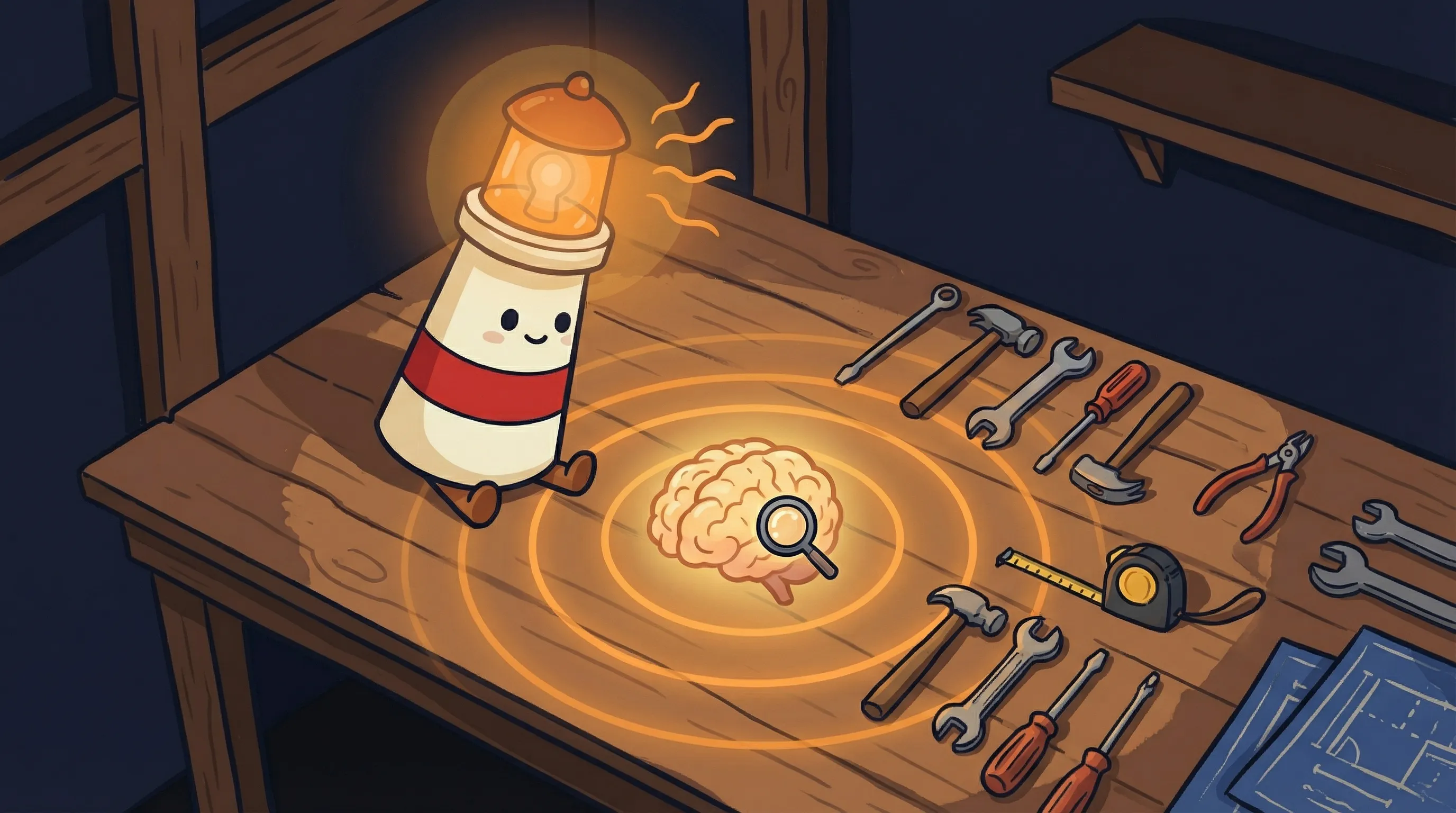 Some knowledge just sits in the dark until you build a system to find it again.
Once those are in place, the setup is a single prompt to your agent:
When I drop a URL in the "knowledge-base" topic:
1. Fetch the content (article, tweet, YouTube transcript, PDF)
2. Ingest it into the knowledge base with metadata (title, URL, date, type)
3. Reply with confirmation: what was ingested and chunk count

When I ask a question in this topic:
1. Search the knowledge base semantically
2. Return top results with sources and relevant excerpts
3. If no good matches, tell me

Also: when other workflows need research (e.g., video ideas, meeting prep),
automatically query the knowledge base for relevant saved content.
That’s it. The agent handles everything else. Drop a link to a Medium article — it fetches and saves it. Drop a YouTube URL — it pulls the transcript and saves that. Drop a PDF link — same process. Every item gets stored with its title, source URL, date, and content type so you can retrieve it later with proper attribution.
To test it: drop three or four URLs you’ve been meaning to read. Then ask: ‘What do I have about LLM memory?’ You’ll see ranked results with excerpts and source links — not a list of filenames, but actual relevant passages.
The Part Nobody Mentions: Your Knowledge Base Feeds Everything Else
Here’s where most people’s mental model of this breaks down — and this is what I promised to explain earlier.
Most people think of a knowledge base as a search tool. You save things. You search things. That’s the whole loop. But the prompt above does something most tutorials skip: it tells your agent to query the knowledge base automatically when other workflows need research.
Think about what that means in practice. You’ve spent six months saving articles about AI reasoning, prompt engineering, and agent architecture. Now when you ask your agent to help you prep for a client call about AI tools, it doesn’t just search the web — it searches your knowledge base first. It surfaces the three pieces you saved last month that are directly relevant. It connects your 2024 research to your 2026 conversation.
Your past reading becomes active infrastructure. It’s not an archive — it’s a layer that every other workflow can draw from. That shift from passive storage to active retrieval is the real value of building this correctly. And it’s the thing that makes a personal AI assistant dramatically more useful than a general-purpose chatbot: your agent knows your context.
I’ve seen this described in other tutorials but glossed over. The technical people building DIY systems with ChromaDB and Ollama — which can absolutely work, and requires roughly 200 lines of Python code for a local version — often focus on the search capability and miss the integration story. The integration is where the leverage lives.
Where This Setup Falls Apart
I want to be honest about the failure modes, because they’re real.
- Paywalled content breaks silently. If you drop a link to a paywalled article, the fetch step might return the preview text only — or a login page. The agent will ingest whatever it gets, which could be almost nothing. Always verify the confirmation message mentions actual content, not just a title.
- Search quality degrades with low-quality saves. If you’re dropping links to articles that are mostly boilerplate, ads, and navigation text, the knowledge base fills up with noise. Garbage in, garbage out — this system doesn’t filter for quality, it just indexes what’s there.
- Questions need to be specific. ‘What do I have about AI?’ will return everything. ‘What do I have about how AI agents handle failures mid-task?’ will return something useful. Train yourself to ask narrow questions.
- YouTube transcripts vary by video. Auto-generated transcripts from YouTube are often messy — no punctuation, speaker overlap, filler words. The content is still useful, but expect lower retrieval precision for video content compared to well-written articles.
- The knowledge base grows faster than it gets cleaned. After six months, you’ll have hundreds of saved items. Some will be outdated. There’s no automatic pruning — you’ll need to periodically audit and remove stale content manually.
None of these are dealbreakers. They’re just things to know going in so you don’t spend an afternoon debugging something that’s actually working as designed.
Your Monday Morning Knowledge Base Checklist
If you want to have this running by end of week, here’s the sequence:
- Set up an OpenClaw agent via BrainRoad (30-day trial gets you started — no credit card required for the first agent)
- Install the
knowledge-baseskill from ClawdHub — takes under 5 minutes from the agent dashboard - Create a Telegram topic called ‘knowledge-base’ in your existing Telegram (or a dedicated Slack channel if you prefer — either works)
- Paste the full prompt above into your agent’s system instructions — copy it exactly, then modify the workflow integrations to match whatever other tasks your agent handles
- Drop 5-10 URLs you’ve been meaning to read — articles, YouTube videos, PDFs — and verify each one gets a confirmation with chunk count
- Wait 24 hours (let yourself naturally accumulate a few more saves), then ask your first real question: ‘What do I have about [topic you actually care about]?’
- If results feel weak, check that the confirmation messages are showing chunk counts above 3 — if you’re seeing ‘1 chunk’, the fetch probably hit a paywall or redirect
- After 30 days, do a quick audit: ask your agent ‘What’s the oldest content in my knowledge base?’ and prune anything that’s no longer relevant
The whole setup takes under an hour. The value compounds over months as you save more content and the knowledge base becomes a real reflection of what you’ve actually read and cared about. For more on what a well-configured personal AI agent can do beyond search, the guide on how people actually use personal AI agents in 2026 is worth a read.
What This Changes About How You Work
- The bookmark folder is dead. Dropping a link into Telegram and getting a confirmation is faster than saving to any bookmark manager — and unlike bookmarks, you can actually find it again.
- Keyword search is the wrong tool for knowledge retrieval. Searching by meaning finds what you were thinking about, not just what you typed. That distinction matters more than it sounds.
- Your past reading compounds. Every article you save makes future questions more answerable. After six months, this system knows your intellectual history better than you do.
- The knowledge base isn’t just for search — it’s a research layer. When wired into other workflows (meeting prep, content creation, client research), it surfaces relevant context automatically, without you having to remember to look.
- Setup takes less time than you think. The OpenClaw + ClawdHub approach gets you running in under an hour. The DIY path with ChromaDB and Ollama takes a weekend and roughly 200 lines of Python — worth it if you want local-only storage, but not necessary to start.
Frequently Asked Questions
Do I need to know how to code to set this up?
No. The OpenClaw + ClawdHub approach requires no coding — just installing a skill, creating a Telegram topic, and pasting a prompt. If you want a fully local, privacy-first version (nothing leaves your machine), tools like ChromaDB and Ollama can do it in about 200 lines of Python — but that’s an optional path, not a requirement.
What types of content can it ingest?
Articles, tweets, YouTube transcripts, and PDFs — all via a single URL drop. The agent uses a built-in web fetch tool to pull the content before saving it. Paywalled content is the main exception: if the URL redirects to a login page, you’ll only get whatever text is publicly visible.
Is my saved content private?
With the OpenClaw setup described here, your content lives within your agent’s storage — it’s not shared with other users. For maximum privacy (nothing processed outside your machine), the local-first approach using Ollama and ChromaDB keeps all data on your own hardware. Cloud-based tools like Notion AI and Google Workspace AI have ‘private mode’ clauses that sometimes permit the provider to use your data for model improvement, so read the fine print before using those for sensitive material.
How is this different from just using Notion or Obsidian?
Notion and Obsidian are storage tools — they’re great for organizing information you manually structure. This system is a retrieval tool: it ingests content automatically (no copy-pasting), searches by meaning rather than keywords, and feeds results into other workflows without you having to remember to check it. The key difference is that your AI agent can query it proactively on your behalf.
What happens when I ask a question and there are no good matches?
The agent is prompted to tell you explicitly: ‘No good matches found.’ That’s intentional. An honest ‘I don’t have that’ is more useful than a confident hallucination. It also signals that you should go find and save a source on that topic — which feeds the system for next time.
Sources
- Personal Knowledge Base (RAG) — awesome-openclaw-usecases
- Building a Personal Knowledge Base with Semantic Search — Matt Warren
- Build a Personal AI Knowledge Base with Local Files — Desktop Commander
- How to Build an AI Search Agent That Thinks Before It Answers — Medium
- How To Build An AI-powered Personal Knowledge Base — Alibaba Product Insights
- How To Run An AI-powered Local Search Engine For Your Personal Document Archive — Alibaba Product Insights
- Docify: The Revolutionary Local AI Research Tool — BrightCoding