How to Move from ChatGPT Copy-Paste to a Business Brain
On this page
What’s the real reason you’re still pasting the same client background into ChatGPT every single morning?
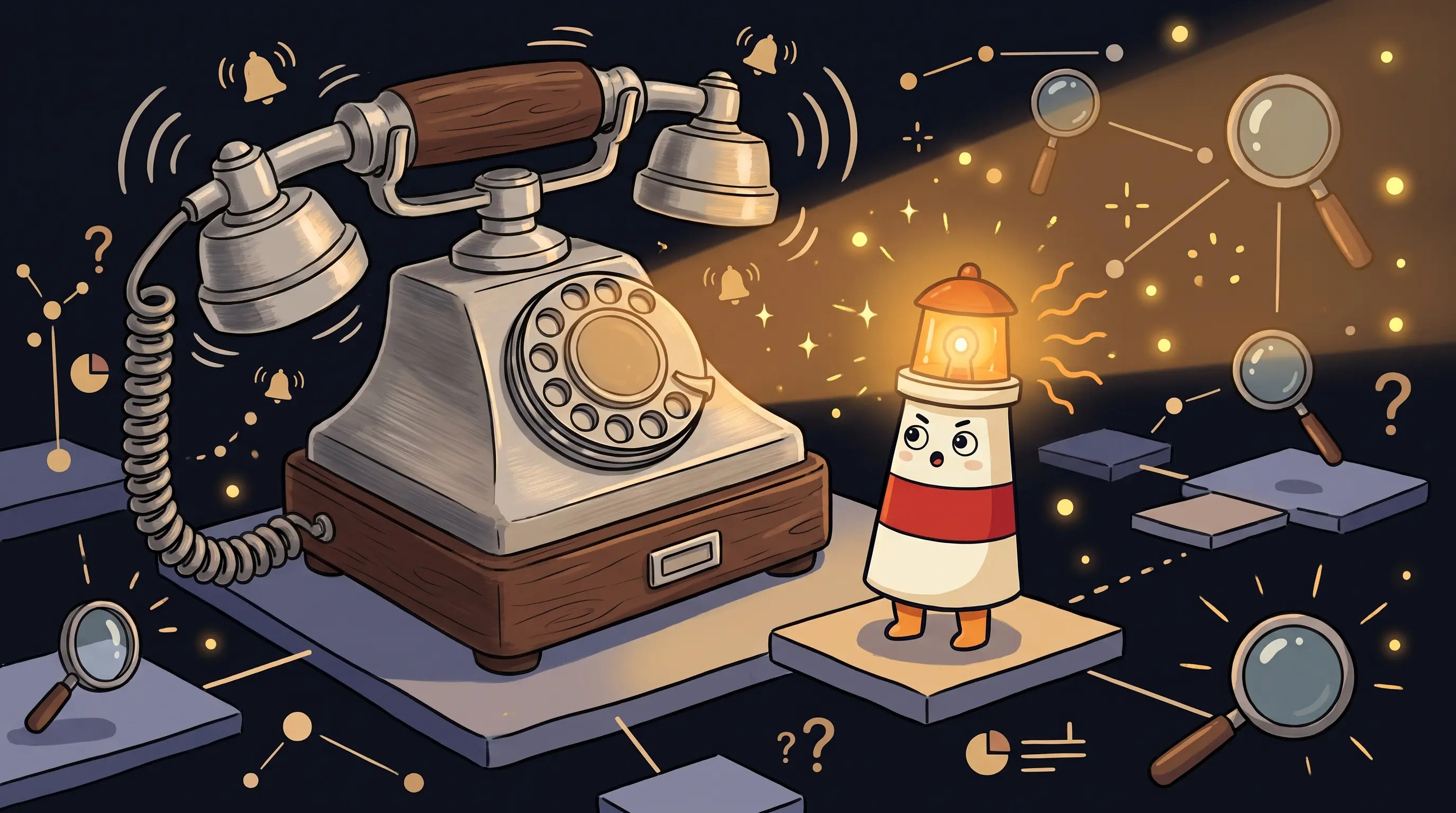
It’s not because you haven’t figured out the right prompt. It’s not because you’re bad at this. It’s because you’re using a reactive tool for a job that needs a contextual one. ChatGPT in a browser tab is brilliant — and it stops working the moment you close it. Every session starts blank. Your customer details, your follow-up notes, your project context: none of it carries over. So you paste it again. And again. And again.
There’s a specific sequence that fixes this permanently — context first, one workflow second, a review gate third. The order matters more than people realize, and most guides skip straight to the prompts without explaining why the sequence is what makes it stick. I’ll walk through it in detail below. But first, let’s look at what’s actually breaking in the way most solo business owners use ChatGPT today.
What’s Breaking in Your Current ChatGPT Workflow
Here’s the pattern we see constantly. A business owner finds ChatGPT, gets excited, uses it heavily for two weeks, then quietly drifts back to doing most things manually. Not because the tool failed them. Because they never set up a workflow — they just had a tab.
About 30% of new ChatGPT Plus subscribers cancel within 90 days. The reason isn’t disappointment with the AI. It’s that they paid for a subscription and kept using it the same way they used the free version: one-off questions, no repeated workflow, starting fresh every session. Subscription dollars without a workflow is just digital litter.
The root cause is simple: standard ChatGPT is a reactive tool. You go to it, you type something, it responds. Close the tab and it stops. It doesn’t know your business unless you tell it — and it can’t access your emails, notes, or customer files without deliberate setup. Your business context lives scattered across email threads, notes apps, and files. The AI can’t read any of that unless you paste it in. So you paste it in. Every time.
The fix isn’t a better prompt. It’s a different setup. If you’re exploring AI automation as a solo business owner, the place to start is not with more prompts — it’s with getting your context loaded once so the AI can actually use it.
The Three-Step Migration Path from Copy-Paste to Contextual AI
The migration from ‘ChatGPT tab I use sometimes’ to ‘AI helper that knows my business’ has three steps. You can’t skip the order. Each step makes the next one work.
Step one is loading your business context so the AI stops starting from a blank page. Step two is picking one real repeating task and making the AI genuinely useful for that single thing. Step three is setting a review gate — a check with you before anything gets sent, posted, or changed. That third step is the one most people underestimate, and it’s the reason some setups feel safe and some feel reckless. I’ll get to why that staged pattern matters after the first two steps.
Step 1: Load Your Business Context (So the AI Knows Your Business)
ChatGPT on paid plans has two features built for exactly this: Projects and Custom Instructions. Most people ignore both.
Custom Instructions let you program ChatGPT with background it keeps in mind for every conversation. Think of it as the briefing you’d give a new assistant on day one: who you are, what you do, how you talk to customers, what you never want the AI to say. You set it once. It applies every session.
Projects go further. ChatGPT Projects let you create separate working environments — one for client A, one for your proposal workflow, one for your follow-ups — each with its own instructions and uploaded files. The AI holds the context within that project across sessions without you re-pasting anything.
What to Load First
Don’t try to load everything. The most useful context to start with is the stuff you paste most often:
- A one-page brief about your business: what you do, who your clients are, your tone of voice
- Your most common email templates and how you like to phrase follow-ups
- A list of current active clients or projects with key context (status, last touchpoint, what’s next)
- Any standard pricing, service descriptions, or FAQ content you regularly reference
- Examples of replies you’ve sent that you’d call ‘good’ — the AI learns from your examples faster than from instructions
Upload these as files inside a ChatGPT Project, or paste the key points into your Custom Instructions. This is the difference between an AI that starts from scratch and an AI that already knows your business when you open the tab.
Step 2: Build One ChatGPT Workflow Automation (Before You Add More)
This is where most well-intentioned setups fall apart. Someone loads their context, feels good about it, and then tries to automate five things at once. Three weeks later, none of them are actually running.
Build depth on one workflow before you add anything else. Depth on one task beats breadth across ten. The first workflow should be something you do at least twice a week, something that involves writing or summarizing, and something that currently costs you 20 to 45 minutes every time you do it.
The highest-value starting workflows for solo business owners are:
Follow-up drafts from customer notes
Paste in rough notes from a call or meeting. The AI drafts a professional follow-up email in your voice, referencing the specific details from the conversation.
Pre-call context summaries
Before a client call, ask the AI to summarize everything you've told it about that client — last touchpoint, open items, what they care about — so you walk in prepared.
Meeting notes → next actions
Paste messy, fast notes from a meeting. The AI extracts the decisions made, who owns what, and what needs to happen before the next conversation.
Email reply drafts from files
Forward a client email (or paste it in), add a note about how you want to respond, and get a draft that's 70-80% ready to send without rework.
That last number — 70 to 80% ready to use — is what good prompting actually delivers. The difference between a draft that needs 5 minutes of editing and one that needs 30 comes down to how specifically you frame the request.
A Prompt Structure That Actually Works
Use the Role-Audience-Outcome-Format structure on every business task. It sounds formal. It takes 30 seconds. It cuts your editing time in half.
- Role: Tell the AI who it is for this task. ‘You’re a business owner who runs a boutique interior design studio.’
- Audience: Tell it who the output is for. ‘This email goes to a client who is three weeks into a project and feeling slightly anxious about the timeline.’
- Outcome: Tell it what the message needs to accomplish. ‘Reassure them, give them one specific update, and propose a 15-minute check-in.’
- Format: Tell it how to structure the output. ‘Write it as a short email, under 150 words, in a warm but professional tone. No bullet points.’
That’s four sentences of setup. The draft you get back needs light editing, not a rewrite. Once you’ve run this workflow 10 times, it becomes muscle memory — and the AI’s output keeps improving as it learns your examples.
 Beacon says: you deserve more than a tab you paste into — let’s build something that actually works with you.
Step 3: Set the Review Gate Before Anything Goes to a Customer
Here’s why the staging pattern matters — the thing I mentioned earlier.
Specialist AI email tools like Serif are deliberately built to start in draft-only mode. They don’t send anything. They draft, they surface the draft to you, you approve, then it goes. Only after you’ve seen dozens of drafts and decided the output is trustworthy for a specific type of email do they allow more autonomy — and only for that specific type. That’s not a limitation. That’s the design.
The same principle applies to your ChatGPT workflow. The AI drafts. You review. You send. Human oversight isn’t optional for customer-facing output — it’s the reason the output can be trusted. One tone-deaf email to the wrong client at the wrong moment costs more than the hours you saved.
In practice, the review gate looks like this: the AI produces the draft inside the chat window. You read it. You tweak the two sentences that sound slightly off. You paste it into your email client and send it yourself. The AI never touches your outbox directly. That’s the control model that works — and it’s the model you should maintain until you’ve seen enough output to know exactly which categories of draft you trust completely.
If you want to see how this pattern extends to AI customer follow-up automation with a full safety review, that guide walks through the mechanics of keeping the send button in your hands.
Why the Migration Fails When People Skip the Order
We’ve watched this break the same way every time.
Someone skips Step 1 and goes straight to building a workflow. The AI has no context, so the drafts are generic. They edit everything. It doesn’t feel faster. They stop using it.
Someone loads context but tries to automate five workflows at once. None of them run reliably because none of them have been refined. The whole thing feels like a project rather than a tool. They abandon it.
Someone skips the review gate. The AI drafts an email, they forward it without reading it closely, and a client gets a message with the wrong project name and an outdated price. Now they don’t trust the AI at all — and they were right not to.
The sequence exists because each step creates the conditions for the next one to work. Context makes the workflow useful. One workflow makes the review gate manageable. The review gate makes the whole thing safe to expand.
What to Expect in Week 1
Day one through three feels a bit slow. You’re loading context, writing your business brief, uploading files. Nothing dramatic happens. This is the necessary boring part.
Day four is usually when something clicks. You run your first real workflow — maybe a follow-up draft from messy call notes — and the draft is genuinely good. Not perfect. Good. You spend four minutes editing instead of twenty writing from scratch. That’s the moment most people understand what they’ve actually built.
By day seven, you’ve run the workflow four or five times. You’ve noticed what the AI gets right every time (tone, structure, the factual details you gave it) and what it consistently gets slightly wrong (sometimes overly formal, sometimes misses the urgency). You start adjusting your prompt to fix the consistent mistakes. The output improves.
End of week one: one workflow running, review gate holding, context loaded. That’s the foundation. Everything else gets added on top of something that actually works.
Your Monday Morning Migration Checklist
Here’s exactly what to do this week. In order.
- Write your business brief (30 minutes). One document, under 600 words: what you do, who your clients are, your service or product, your typical communication tone, and the things you never want an AI to say on your behalf. This is your foundation. Keep it honest and current.
- Set up Custom Instructions in ChatGPT (10 minutes). Go to Settings → Personalization → Custom Instructions. Paste in your brief. This applies to every conversation from now on, so the AI isn’t starting cold every time you open a tab.
- Create one Project for your most active workflow (15 minutes). If you’re most behind on follow-ups, make a ‘Follow-Ups’ project. Upload your client list, any relevant email templates, and two or three examples of follow-up emails you’ve written that you’d call good. The examples matter — the AI learns your voice from them.
- Pick one real task and run it today (20–45 minutes, depending on complexity). Draft a follow-up from the messiest set of notes you have sitting in your notebook or inbox right now. Use the Role-Audience-Outcome-Format structure. Read the draft. Edit what’s off. Send it yourself. Note the time it took.
- If the draft needed more than 10 minutes of editing: Your context brief is probably too thin, or your prompt skipped one of the four elements. Add more examples to the Project and re-run. If the draft needed less than 5 minutes of editing: you’re ready to set this as your standard workflow.
- Set your review rule before you expand anything. Write it down, literally: ‘The AI drafts. I read it. I edit it. I send it.’ Nothing goes to a customer without you reading it first. Keep this rule for at least 30 days before deciding any category of output is trustworthy enough to send with only a skim.
- Wait two full weeks before adding a second workflow. Depth on one task first. Once the follow-up workflow is running smoothly and saving you real time — at least 30 minutes per week — then pick the next highest-friction task and repeat the process.
What Your Business Looks Like a Year From Now
Gartner predicts that 40% of enterprise software will include task-specific AI helpers by the end of 2026, up from less than 5% in 2025. That shift is already showing up in how business owners talk to each other about follow-ups, client communication, and admin load. The ones who have a contextual AI setup now aren’t doing anything exotic. They’re just not doing every tiny admin loop manually anymore.
A year from now, the weird thing won’t be having an AI helper that knows your business context. It will be still re-pasting the same client notes into a fresh tab every morning while the business owner across the street is drafting follow-ups in four minutes instead of forty.
The gap doesn’t happen from one dramatic moment. It accumulates from dozens of small delays, removed one at a time. Every follow-up that goes out same-day instead of three days late. Every pre-call brief you actually read instead of winging it. Every meeting note that becomes a task list instead of a memory you lose by Thursday.
The business owners who figure out the three-step sequence now — context, workflow, review gate — aren’t just saving time. They’re building a working pattern that compounds. The ones who keep copy-pasting keep paying the same tax on every interaction. The math stopped making sense a while ago.
What to Remember After You Close This Tab
- ChatGPT for small business works — but only after you load your business context. Without it, every session starts blank and the AI drafts for a business it doesn’t know.
- About 30% of ChatGPT Plus subscribers cancel within 90 days because they never set up a single repeated workflow. The tool isn’t the failure point. The setup is.
- Solo business owners who save 5 to 15 hours per week with AI have defined workflows. Solo business owners who save nothing are prompting ad hoc and copying answers manually.
- The migration sequence is context → one workflow → review gate. Skipping the order breaks each step. Running them in sequence makes each one work.
- The review gate is not optional. The AI drafts. You approve. Nothing goes to a customer without you reading it first — and that stays true until you have 30-plus examples of trustworthy output for a specific type of task.
Frequently Asked Questions
Do I need a paid ChatGPT plan to do this?
You need at least ChatGPT Plus ($20/month) to access Projects and the full Custom Instructions feature with file uploads. The free plan supports basic Custom Instructions but not Projects or knowledge file uploads. If you’re going to use ChatGPT as a business tool with persistent context, the paid plan is the minimum setup worth building on.
Can ChatGPT send emails or update my CRM directly?
Not on its own. ChatGPT drafts inside the chat window. It cannot reach your email client, your CRM, your calendar, or any other external tool without a separate automation layer connecting them. For most solo business owners starting this migration, that’s fine — you’re reviewing and sending manually anyway. If you want the AI to interact with connected tools, you need something built for that, with a review step before any external action happens.
How long before the AI actually sounds like me?
With good examples loaded — three to five emails you’ve written that you’d call ‘good’ — the AI’s tone starts matching yours within the first few drafts. The more examples you add, the faster it calibrates. Expect the first five drafts to need more editing, drafts six through fifteen to need light editing, and drafts sixteen-plus to feel genuinely close to what you’d write yourself. The quality improvement is faster than most people expect.
What if I use Gmail, Notion, or other tools — does any of this connect?
ChatGPT Projects and Custom Instructions work within the ChatGPT interface. They don’t connect to Gmail or Notion automatically. You paste content in (a Notion note, a forwarded email, call notes from wherever you keep them) and the AI works from that. If you want an AI helper that reads directly from your connected tools and drafts work based on what’s actually in them, that requires a more dedicated setup — one designed to connect to your business apps with a review step before anything is sent or changed.
What's the right second workflow to add after the first one is working?
Look at what takes you the most unstructured writing time after follow-ups. For most solo business owners, that’s either pre-call prep (summarizing what you know about a client before you get on a call) or turning meeting notes into action items. Both involve the same pattern: paste in rough content, get structured output, review it. Pick whichever one you’re currently doing slowest and repeat the same setup process.
Related BrainRoad guides
Sources
- Zapier: How to use ChatGPT — a beginner’s guide
- Zapier: What is AI automation and how to use it
- RoboRhythms: How to run an AI agent for your small business
- Implo: How to use ChatGPT for your small business (2026 guide)
- DEV Community: I tested ChatGPT Plus across 3 small businesses for 6 weeks
- WebAIStack: Mastering ChatGPT automation — no-code workflow guide 2026
- BrainRoad: Business Brain Setup
- Serif AI: AI email assistant for professionals
- SawanKr: ChatGPT for business — the complete guide 2026