Live Browser View: Watch Your AI Agent Work in Real Time with BrainRoad VNC
On this page
Your agent triggered at 9 AM. By noon, nothing came back. No result, no error, no indication of what happened. You open the logs — wall of text, no obvious cause. You re-run it, wait again, still nothing. Somewhere in the cloud, a browser is doing something. You just have no idea what.
That was cloud browser automation until very recently. Trigger, wait, hope. When things broke, you were debugging blind — reading logs after the fact, guessing at what the agent saw. The browser was invisible to you by design.
Live VNC viewing changes that completely. And there’s a feature inside it that most people overlook — something that turns a monitoring tool into something more powerful. We’ll get to that after we show you what the live view actually reveals.
Cloud Agents Used to Be a Complete Black Box
Before January 2026, if you ran a browser-based AI agent in the cloud, you were operating on faith. You’d set up the workflow, hit run, and the agent would disappear into a remote environment — clicking links, filling forms, extracting data — entirely out of view.
When it worked, you never thought about this. When it failed — and it does fail — the black box became a real problem.
Four things go wrong with invisible automation, and they go wrong consistently. Coverage gaps, where the agent skips edge cases you didn’t anticipate. Flaky behavior caused by timing issues and dynamic page content. Mounting maintenance burden as the UI it’s navigating changes underneath it. And the hardest one: no way to know if the agent is confused or just slow.
Altruist, which runs browser automation across their QA teams, documented exactly this pattern. Test flakiness, coverage gaps, and high maintenance cost were the three forces compressing what their automation could actually do. The problem wasn’t the automation itself — it was the lack of visibility and intervention when things deviated.
Live VNC viewing was built to solve this. It’s not a debugging nicety. For anyone running agents against real workflows, it’s the difference between a tool you trust and one you’re afraid to depend on.
What Live VNC Browser View Actually Shows You
VNC — Virtual Network Computing — is a technology that streams a live video feed of a remote desktop or browser window to your screen. When your agent opens a browser and starts clicking around, VNC captures every frame of that session and sends it to your browser tab in real time.
You’re not watching a recording. You’re watching it happen.
What you can see through a live VNC stream with BrainRoad:
Every page the agent visits
Watch the agent navigate from URL to URL exactly as it executes, including redirects, login flows, and multi-step forms.
Every click and keystroke
See the agent interact with UI elements — which buttons it presses, what it types, what it extracts — in the order it does them.
Real-time error states
Catch CAPTCHAs, unexpected popups, login failures, and broken page states the moment they appear — not after the job fails.
Parallel sessions simultaneously
When running multiple agents at once, the stream shows all of them. rtrvr.ai demonstrated live VNC across 50+ parallel cloud browsers in their January 2026 release.
Exactly what the agent sees
The viewport, the rendered content, the dynamic elements — same view the agent uses to make decisions, streamed directly to you.
That last point matters more than it sounds. When an agent makes a wrong decision, the most common reason is that the page rendered differently than expected — a modal blocked the element it was targeting, or content loaded out of order. With a live view, you see that immediately. Without it, you’re reading a log that says ‘element not found’ and guessing why.
The Part Most People Miss: Live View Is a Human-in-the-Loop System
Most people discover live VNC and immediately think: debugging tool. Watch the agent, see where it breaks, fix the workflow. That’s useful. But it’s not the most powerful thing live viewing enables.
The real capability is mid-run takeover.
When you’re watching your agent work through a VNC stream, you’re not just an observer — you can grab control of the session at any moment. The agent hits a CAPTCHA, you solve it. The agent encounters a two-factor authentication prompt, you handle it. The agent reaches a decision point that requires human judgment, you make the call and hand it back.
This flips the entire model of ‘autonomous agent’ on its head — in a useful way.
Pure autonomy sounds appealing until your agent gets stuck behind a login page at 2 AM and silently fails a job that needed to complete by morning. A human-in-the-loop system with live viewing gives you the best of both: the agent handles the repetitive work automatically, you step in only when it matters. The AI assistant market is growing at 44.5% per year — projected to reach $21.11 billion by 2030 — and the reason is exactly this: not replacement automation, but capable automation that humans can steer.
The agent handles 95% of the run. You handle the 5% that genuinely needs a human. That’s a different proposition than ‘watch your agent and hope it doesn’t break.‘
When Live VNC Setups Break (And They Do)
It’s a Friday afternoon. Your agent is mid-run on a data extraction workflow. The VNC stream freezes. The session doesn’t reconnect. You’re not sure if the agent is still running, stuck, or crashed — and you have no way to tell.
This happens. Here’s what causes it and what to watch for:
- Connection timeouts. VNC streams can drop if the keepalive isn’t configured correctly. A one-line config change fixes this — but most default setups don’t include it.
- Memory pressure from parallel sessions. Running 50 browser sessions simultaneously requires serious compute. If the host is under-resourced, sessions freeze or crash without warning.
- No authentication on the VNC port. Quick self-hosted installs often leave the VNC port open with no password. Anyone who finds the port can see your agent’s session — or worse, take control of it.
- Persistent profile conflicts. When agents share browser profiles, session cookies and stored credentials bleed between runs. The session you’re watching may be carrying state from a previous run.
- Self-hosted vs managed gap. One practitioner documented a pattern we’ve seen too: a basic VPS install came up in four minutes. A production-ready setup with egress controls, audit logging, encrypted credentials, and a reverse proxy took closer to three days. That gap is where most self-hosted VNC problems live.
The security angle is the one people underestimate most. Quick one-liner installs of agent platforms regularly leave open ports with no authentication, credentials in plaintext files, and gateways bound to every interface on the machine. Adding VNC to that setup means adding a live screen share with no password. That’s not a monitoring feature — that’s an exposure.
Self-Hosted VNC vs Managed: What You’re Actually Choosing Between
You have two paths to live browser viewing for your AI agent. They’re genuinely different, and the right choice depends on what you value.
Self-Hosted VNC
Install Chrome Stable, Xvfb (a virtual display server), and noVNC (a browser-accessible VNC client) on a VPS. You control everything: the browser profile, the session persistence, the security config.
Good for: Developers who want full control over the environment and have time to configure it properly.
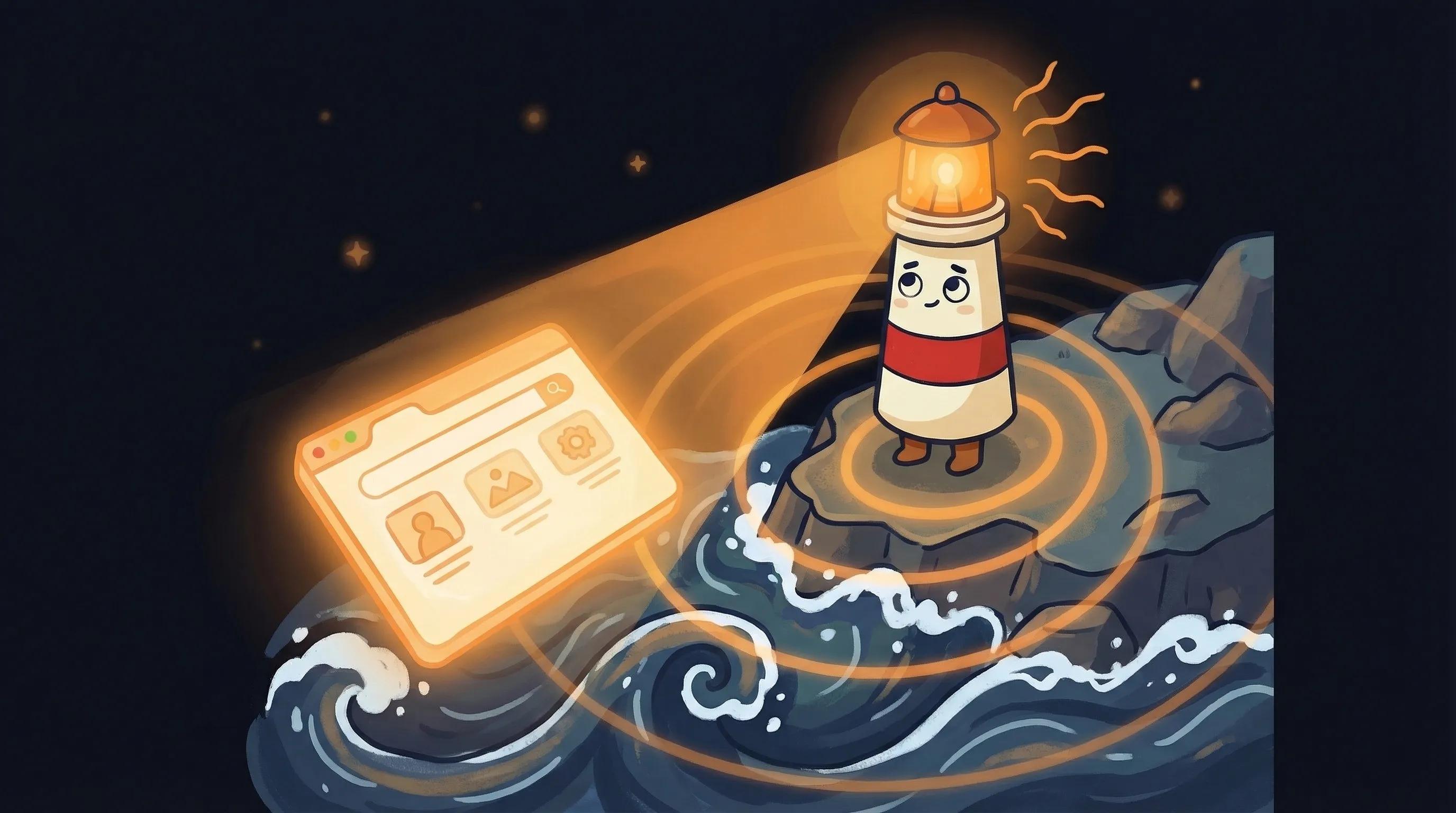
 Beacon says: no more wondering what your AI is up to — some things are better watched in real time.
Watch out for: Open ports, no authentication by default, memory management, and the three-day gap between ‘it’s running’ and ‘it’s production-ready.’
Managed VNC (BrainRoad)
The VNC stream is built into the platform. Each agent runs in its own isolated container with persistent storage and a live view you access from the dashboard — no server config required.
Good for: Anyone who wants live visibility without managing infrastructure. The authentication, isolation, and keepalive handling are already done.
Watch out for: Less granular control over browser environment config compared to a fully custom self-hosted setup.
Here’s the honest take: self-hosting with Chrome Stable, Xvfb, and noVNC is a legitimate setup. One practitioner documented it in detail specifically because sometimes you need a real browser on a VPS with stable, predictable behavior and a persistent profile — not a managed cloud environment. That’s a real use case.
But if your goal is watching your personal AI agent handle email, scheduling, or research — and you want to step in when it needs you — the managed path is faster and the security model is handled for you. You can explore AI agent platform options and see how managed VNC fits into the broader hosting decision.
The tradeoff isn’t capability. It’s time. Self-hosting gives you more control. Managed gives you the control you actually need, faster.
One thing worth noting if you go self-hosted: combine it with a way to track what your agent accomplishes between live sessions. We wrote about syncing your agent’s progress to Todoist — pairs well with a VNC setup where you’re not watching 24/7.
Your First 30 Minutes with Live Agent View
Whether you’re setting up VNC for the first time or evaluating whether it’s worth it, here’s where to start:
- Open a live view session before you run anything important. Watch your agent execute a low-stakes workflow first — a simple search, a page scrape, something you can afford to lose. You want to calibrate what ‘normal’ looks like before you depend on the stream for a critical run.
- Check your VNC port authentication immediately. If you’re self-hosted, confirm the VNC port (typically 5900 or the noVNC proxy port) requires a password and is not bound to a public interface. If it’s open with no auth, stop here and fix it before running any agent that touches real accounts or data.
- Test the mid-run takeover deliberately. Run a workflow, then manually take control mid-session. Click something. Type something. Hand it back. You want to know this works before you need it — not when your agent hits a CAPTCHA at 11 PM.
- Set your keepalive timeout to prevent stream drops. Default VNC configs often have no keepalive, which means the stream freezes after a period of inactivity. Add a keepalive setting — 30-60 seconds is a reasonable starting point for most setups.
- If running parallel sessions, start with 3-5 before scaling. Verify your host has enough memory to sustain them without degrading the stream quality. Watch CPU and memory during the run. Scale up only after you’ve confirmed stability at smaller counts.
- Build a mid-run intervention plan. Identify the two or three points in your workflow where a human decision is most likely needed — authentication walls, form fields with judgment calls, CAPTCHAs. Know in advance that you’re watching for those moments, so you catch them instead of waiting for a failure notification.
What Live Viewing Changes About Running AI Agents
Live VNC viewing isn’t a feature. It’s trust infrastructure.
You don’t trust an agent you can’t see. Not with anything that matters — real accounts, real data, real workflows that have downstream consequences. The black box model worked fine for low-stakes experiments. It breaks down the moment you’re depending on the agent.
- Cloud browser execution was a black box until January 2026 — rtrvr.ai’s v27 release introduced live VNC streaming across 50+ parallel browsers simultaneously.
- Mid-run takeover transforms live viewing from a monitoring tool into a human-in-the-loop system — you step in at authentication walls, CAPTCHAs, and judgment calls.
- Self-hosted VNC (Chrome Stable + Xvfb + noVNC) is viable for developers who want full control, but the gap between ‘running’ and ‘production-ready’ can be several days of security and configuration work.
- The most dangerous failure mode isn’t a broken VNC stream — it’s an open VNC port with no authentication on a public-facing VPS.
- Start with low-stakes runs to calibrate what normal looks like before depending on the stream for critical workflows.
The Bigger Picture
The question isn’t whether live browser viewing is worth having. If you’re running AI agents against real work, it’s not optional — it’s the difference between automation you trust and automation you’re afraid to scale.
The question is what you’re building toward. An agent that handles your busywork while you stay in control of the decisions that matter — that’s a different tool than one you trigger and forget. Live VNC isn’t the monitoring layer on top of that tool. It’s what makes that tool possible.
If you’re thinking about what else your agent should be handling, the personal AI assistant space is broader than browser automation — email, calendar, research, follow-ups. Live view is one piece of how you keep that agent accountable. The rest is choosing what to hand it.
Frequently Asked Questions
What is VNC and how does it work with AI agents?
VNC (Virtual Network Computing) streams a live video feed of a remote browser or desktop to your screen. When your AI agent opens a browser and starts navigating, VNC captures each frame of that session and sends it to your browser in real time. You’re watching the agent work live — not a recording — and can take control of the session if needed.
Can I really take control of my agent mid-run?
Yes. Mid-run takeover lets you grab the session from the agent at any point during execution. This is most useful when the agent hits something that requires human judgment — a CAPTCHA, a two-factor authentication prompt, or a form that needs a decision the agent wasn’t trained to make. You handle that moment, then the agent resumes.
What's the difference between self-hosted VNC and managed VNC?
Self-hosted VNC (using tools like Chrome Stable, Xvfb, and noVNC on a VPS) gives you full control over the browser environment, persistent profiles, and configuration. Managed VNC, like BrainRoad’s built-in live view, handles the authentication, container isolation, and infrastructure for you. Self-hosted is right for developers who need custom control. Managed is right for anyone who wants live visibility without days of security configuration.
Is an open VNC port a security risk?
Yes — a significant one. Quick or one-liner installs of agent platforms often leave the VNC port open with no authentication. Anyone who discovers the port can watch your agent’s session or take control of it. Before running any agent that touches real accounts or sensitive data, verify your VNC port requires authentication and is not bound to a public network interface.
How many parallel browser sessions can I watch at once?
This depends on your setup. rtrvr.ai demonstrated live VNC streaming across 50+ parallel cloud browsers simultaneously in their January 2026 release. For self-hosted setups, the practical limit is determined by your host’s memory and CPU. Start with 3-5 parallel sessions and scale up after confirming stability — parallel sessions can degrade stream quality if the host is under-resourced.
Sources
- rtrvr.ai v27: Interactive Cloud, Unlimited FREE Extension
- A Real Browser for Your Clawdbot: Chrome Stable + Xvfb + noVNC — Medium
- Browser Automation AI Agent — Altruist Engineering Blog
- OpenClaw Setup: Easy Way vs Hard Way (2026) — BrainRoad
- One AI Assistant for Email, Calendar & Every App — BrainRoad
Try it free for 30 days
BrainRoad builds the private Business Brain your AI helper drafts from, with review before anything sends. Free for 30 days, no credit card.
Build Your Business BrainRelated Articles

AI front desk software for small business: missed calls, follow-ups, and owner approval

AI Phone Receptionist vs AI Follow-Up Assistant: Which Should a Small Business Hire First?