One AI Assistant Across Every App: Phone, Email, Calendar, and More
On this page
You have 12 tabs open. Three of them are apps you check every hour. You’ve answered two Slack messages, snoozed a calendar reminder, and moved a task from your inbox to Todoist — and it’s 9:15 AM.
The conventional wisdom says you need better apps. A better calendar. A better email client. A better task manager. That’s the wrong diagnosis.
The apps aren’t the problem. The switching is. Every time your brain shifts from Gmail to Slack to Asana, it pays a cost — context you lose, decisions you delay, threads you drop. I’ve watched this pattern grind down smart people for years. The tools keep improving. The overwhelm doesn’t.
The fix isn’t a new app. It’s one assistant that talks to all your existing apps. I’ll show you the exact setup — and in a minute, I’ll explain why the routing architecture is the part everyone misses when they try to build this themselves.
The Real Cost of Switching Between 12 Tools
The AI assistant market is projected to grow from $3.35 billion in 2025 to $21.11 billion by 2030 — a 44.5% compound annual growth rate. Y Combinator has already funded 149 AI assistant startups as of early 2026. That’s a lot of money chasing a real problem.
But look at where those tools land. Email tools. Calendar tools. Task tools. Voice tools. Each one makes one slice of your day more efficient. None of them talk to each other. You’re still the router.
That’s what nobody building these products wants to say out loud: most AI assistants are smarter versions of the apps you already have. They don’t reduce the number of places you need to go. They make each destination nicer.
What you actually need is one interface that routes to all of them. You type (or say) what you want. The assistant figures out which tool handles it and takes the action. You never leave the conversation.
How a Multi-Channel Assistant Routes Everything
Here’s what a unified setup actually looks like in practice. This is built on OpenClaw — the same open-source agent framework that powers BrainRoad — and it uses Telegram as the primary interface with topic-based routing.
Telegram lets you create a channel with multiple topic threads. Each thread maps to a different context. So instead of one chaotic inbox, you have:
- config — bot settings and debugging
- updates — daily summaries, reminders, calendar
- video-ideas — content pipeline and research
- personal-crm — contact management and meeting prep
- earnings — financial tracking
- knowledge-base — save and search content across your tools
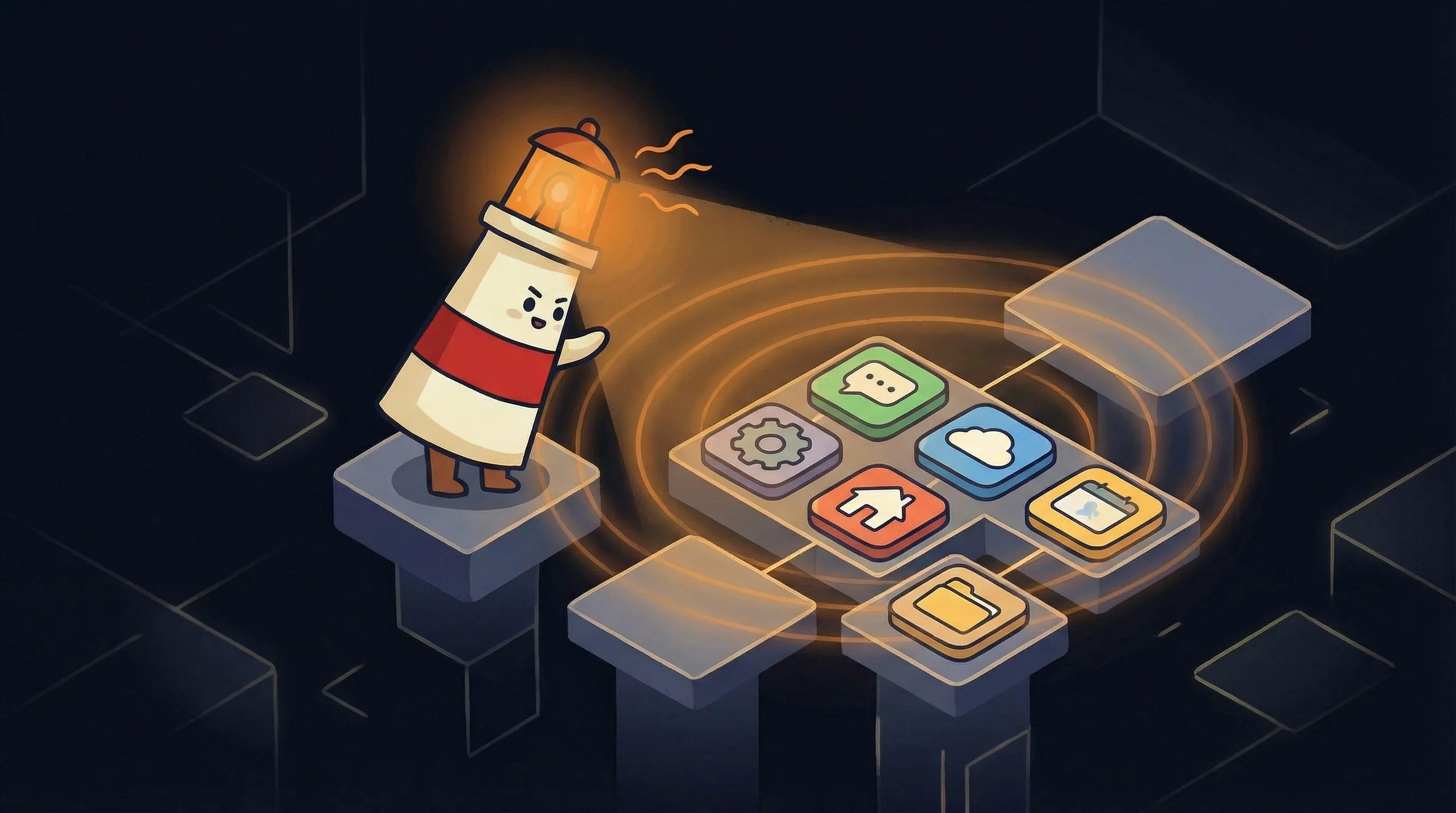
Behind each topic, the assistant routes to the right tool. Ask it to add a task and it goes to Todoist. Ask it to create a project card and it goes to Asana. Ask it to schedule a meeting and it hits Google Calendar. Ask it to email someone and it drafts in Gmail. You never touch the destination app.
Slack connects for team-facing work — task assignment, saving links to the knowledge base, triggering video ideas from a conversation. Google Workspace handles calendar events, email drafts, and Drive uploads. The full integration list for this setup: Telegram, Slack, Gmail, Google Calendar, Google Drive, Todoist, and Asana.
Why One Interface Actually Changes Your Brain (Not Just Your Workflow)
Here’s the part everyone misses when they try to build a unified assistant: the goal isn’t to reduce clicks. It’s to reduce decisions.
Every time you switch apps, you make a micro-decision: where does this belong? Todoist or Asana? Calendar or task? Slack or email? Those decisions sound trivial. Stacked across a workday, they’re exhausting. They crowd out the decisions that actually matter.
A routed assistant removes the destination decision entirely. You just say what you want. The assistant picks the tool. You stop maintaining a mental map of where things live — and that mental map, it turns out, is what burns you down.
This is the shift that’s happened in 2026. Gmelius put it plainly: we’ve moved past the novelty of chatbots and into an era where AI assistants are ‘the glue holding our fragmented digital workflows together.’ OS-level and cross-application integration is now the defining trend — not standalone chat interfaces.
That shift is also why 40% of enterprise applications are expected to include task-specific AI agents by end of 2026 — up from less than 5% in 2025. The single-tool assistant is being replaced by the orchestration layer.
What You Need Before You Start
Building this setup requires a few connected pieces. None of them are exotic. Here’s what you need:
- OpenClaw — the agent framework that connects everything (open source, runs on BrainRoad or self-hosted)
- Telegram — your primary interface, configured with multiple topic threads
- Google OAuth — authorizes the assistant to access Gmail, Google Calendar, and Google Drive
- Slack — app token plus user token for both bot and personal actions
- Todoist API token — for task capture
- Asana API token — for project cards
- gog CLI — the command-line tool that OpenClaw uses to talk to Google Workspace
None of these require you to write code. You need API tokens (each takes about 5 minutes to generate from the tool’s developer settings) and OAuth authorization for Google. OpenClaw’s config file connects them all.
If you’ve already seen how people actually use personal AI agents in 2026, this setup will look familiar — it’s the same pattern, just with all the routing wired together.
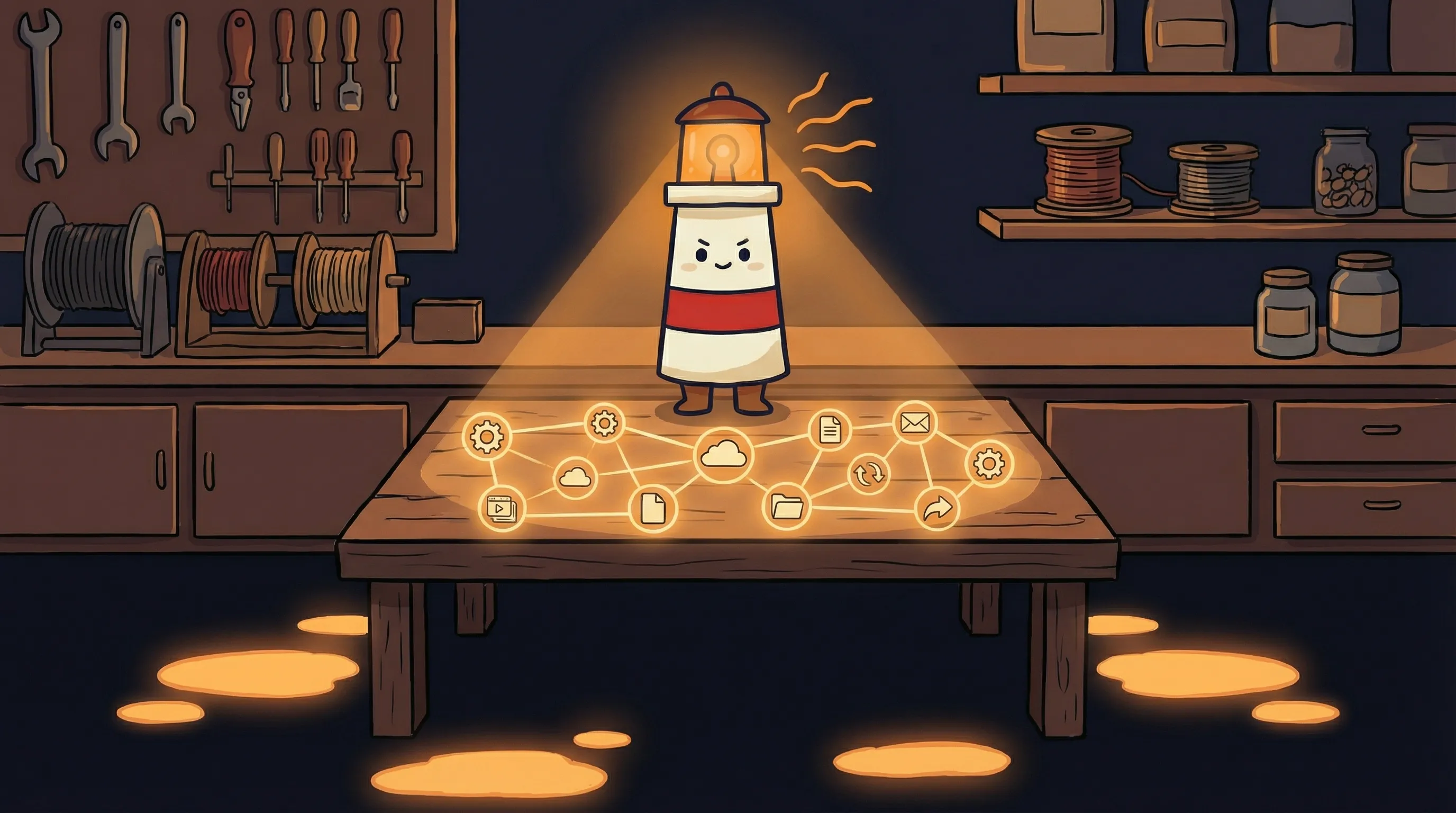 Beacon says: one light, every room — that’s the idea.
How to Set Up the Multi-Channel Routing
Once your tools are connected in OpenClaw’s config, the assistant needs a routing prompt. This is the instruction set that tells it how to interpret your requests and which tool to use. Here’s the core prompt for this setup:
You are my multi-channel assistant. Route requests based on context:

Telegram topics:
- "config" → system settings, debugging
- "updates" → daily summaries, reminders, calendar
- "video-ideas" → content pipeline and research
- "personal-crm" → contact queries and meeting prep
- "earnings" → financial tracking
- "knowledge-base" → save and search content

When I ask you to:
- "Add [task] to my todo" → use Todoist
- "Create a card for [topic]" → use Asana Video Pipeline project
- "Schedule [event]" → use gog calendar
- "Email [person] about [topic]" → draft email via gog gmail
- "Upload [file] to Drive" → use gog drive

Set up automated reminders:
- Monday 6 PM: "🗑️ Trash day tomorrow"
- Friday 3 PM: "✍️ Time to write the weekly company update"
The routing logic is straightforward: intent maps to tool. The assistant reads what you typed, matches it to a pattern, and executes. You can expand these mappings over time as you add more tools or more contexts.
Automated reminders are worth calling out specifically. This is where the setup stops being reactive and starts being proactive. Your assistant isn’t just waiting for you to ask — it’s prompting you on a schedule. Monday trash reminders, Friday company updates, whatever your recurring rhythm requires.
Where This Setup Breaks Down
I want to be straight with you about the failure modes, because most guides skip this part.
The most common way this breaks: you wire everything up at once and something doesn’t work, but you don’t know which integration failed. You’re now debugging a system with six moving parts. That’s not a fun Friday afternoon.
The fix is boring and it works: test each integration individually before you test cross-workflow interactions. Connect Todoist. Send a test task. Confirm it lands. Connect Google Calendar. Schedule a test event. Confirm it appears. Then — and only then — test a workflow that spans both (like a Slack link that gets saved to your knowledge base and referenced in a video idea card). Isolate failures early or you’ll spend hours chasing ghosts.
- Token expiration — Google OAuth tokens expire. You need a refresh token, not just an access token. If your Google integrations stop working after a few hours, this is why.
- Slack dual tokens — Slack requires both an app token (for bot actions) and a user token (for actions on your behalf). Using only the app token breaks user-level actions like reading your own DMs.
- Ambiguous routing — If your prompt patterns overlap, the assistant will pick one arbitrarily. Keep routing rules specific and non-overlapping. ‘Add to my todo’ and ‘add to my task list’ should map to the same rule, not two different ones.
- Telegram topic IDs — Telegram topics require numeric IDs, not just names. If your assistant posts to the wrong topic, you likely have a topic ID mismatch in your config.
- gog CLI setup — The gog CLI for Google Workspace requires local authentication and can be finicky on first setup. Run it in a terminal first to confirm auth works before wiring it into OpenClaw.
How to Know It’s Actually Working
After setup, run a quick sanity check before you start relying on this for real work. You’re looking for signal across all six integrations:
- Send a task creation message — confirm it appears in Todoist within 30 seconds
- Ask the assistant to schedule a calendar event for tomorrow — confirm it appears in Google Calendar with the correct time
- Ask it to draft an email — confirm a draft appears in Gmail (not sent, just drafted, until you’re confident)
- Post a Slack message to your team channel via the assistant — confirm it lands under the right sender
- Ask a knowledge-base question — confirm it retrieves content you previously saved
- Wait for Monday at 6 PM (or trigger a manual test reminder) — confirm the Telegram notification fires in the right topic
If all six pass, you have a working multi-channel assistant. If any fail, you know exactly which integration to debug — because you isolated them during setup.
For the full picture on what a production-ready AI agent platform looks like when this is all running smoothly, that’s worth a separate read.
Your First-Week Setup Plan
Don’t try to wire everything in one session. Here’s the sequence that works:
- Day 1 — Choose your interface. Set up a Telegram channel and configure at least 3 topic threads:
config,updates, and one work-specific topic (e.g.,tasksorcrm). You don’t need all six topics on day one. - Day 1 — Connect your first integration. Start with Todoist or Google Calendar — whichever you use more. Generate the API token, add it to OpenClaw’s config, and test one action. Budget 30 minutes for this step.
- Day 2 — Add Google Workspace. Set up Google OAuth with a refresh token (not just an access token — this is the step most people skip). Test calendar creation and Gmail draft separately before combining them.
- Day 3 — Add Slack. You’ll need both the app token and user token. If your workspace doesn’t have a Slack app, create one in Slack’s developer portal — it takes about 20 minutes. Test a channel post and a DM separately.
- Day 4 — Add your project management tool. Connect either Todoist (if you haven’t yet) or Asana. Add the routing prompt patterns for both so the assistant knows which to use based on your language.
- Day 5 — Set up automated reminders. Configure 2-3 recurring reminders that match your actual weekly rhythm. Keep them under 5 to start — too many reminders defeats the purpose.
- End of week — Test a cross-workflow action. Try something that spans two integrations: save a Slack link to your knowledge base, then reference it when creating an Asana card. If this works cleanly, your setup is production-ready.
- Ongoing — Budget $20-50/month for API usage depending on volume. Most personal setups run well under $30/month at normal daily usage.
If you’d rather not manage tokens, OAuth configs, and OpenClaw setup yourself, BrainRoad hosts your agent with a setup wizard that handles the connection layer. You still customize the routing — you just skip the infrastructure plumbing.
The first AI agent setup guide is worth reading before you start if you haven’t deployed an agent before — it covers the foundational steps that apply to every integration.
What This Changes About Your Daily Workflow
- A multi-channel AI assistant consolidates Telegram, Slack, Google Workspace (Gmail, Calendar, Drive), Todoist, and Asana into a single routing interface — you never switch apps to take action.
- Topic-based routing in Telegram is the architectural key: each thread maps to a different context (tasks, CRM, content, finance), keeping your assistant organized without manual sorting.
- The real gain isn’t fewer clicks — it’s fewer context-switch decisions across your day. That cognitive overhead is what actually grinds people down.
- Test integrations one at a time before testing cross-workflow actions. This is the difference between a 30-minute debug session and a 4-hour one.
- Automated reminders (trash day, weekly update) are where the setup becomes proactive rather than reactive — your assistant surfaces the right task at the right time without being asked.
- The AI assistant market is growing at 44.5% annually through 2030, and 40% of enterprise apps are expected to include task-specific AI agents by end of 2026. This architecture is where that’s heading.
Frequently Asked Questions
Do I need to know how to code to set this up?
No. The setup requires generating API tokens from each tool’s developer settings and editing a config file — but no programming. If you can follow a step-by-step guide and copy-paste a token, you have everything you need. BrainRoad’s setup wizard makes this even simpler if you want to skip the config file entirely.
Can I use WhatsApp or Signal instead of Telegram?
You can, but Telegram’s topic-based channel structure is what makes the routing architecture clean. WhatsApp and Signal don’t have the same topic-threading feature, so you’d lose the ability to separate contexts. If WhatsApp is non-negotiable for you, BrainRoad supports WhatsApp as a primary interface — but the multi-topic routing works differently.
What happens if one integration goes down?
The other integrations keep working. Each tool is connected independently, so a Todoist API outage doesn’t affect your Google Calendar or Slack integrations. The assistant will typically return an error message for the failed action and continue handling other requests normally.
How much does running this cost per month?
Most personal setups run between $20-50 per month in API usage, depending on how actively you use it. Tools like Todoist and Asana have free tiers that work with this setup. Google Workspace and Slack costs depend on your existing plan. The OpenClaw framework itself is open source. BrainRoad hosting starts with a 30-day trial and moves to Pro at the published price.
Is my data safe if my assistant can access Gmail and Slack?
Your assistant accesses your tools using OAuth tokens — the same authorization mechanism you use when you log into a third-party app with Google. You can revoke access at any time from each tool’s connected apps settings. The assistant doesn’t store your emails or messages by default; it retrieves them to answer specific requests and then the context expires. BrainRoad uses Kubernetes-grade container isolation so your agent data stays separate from other users.