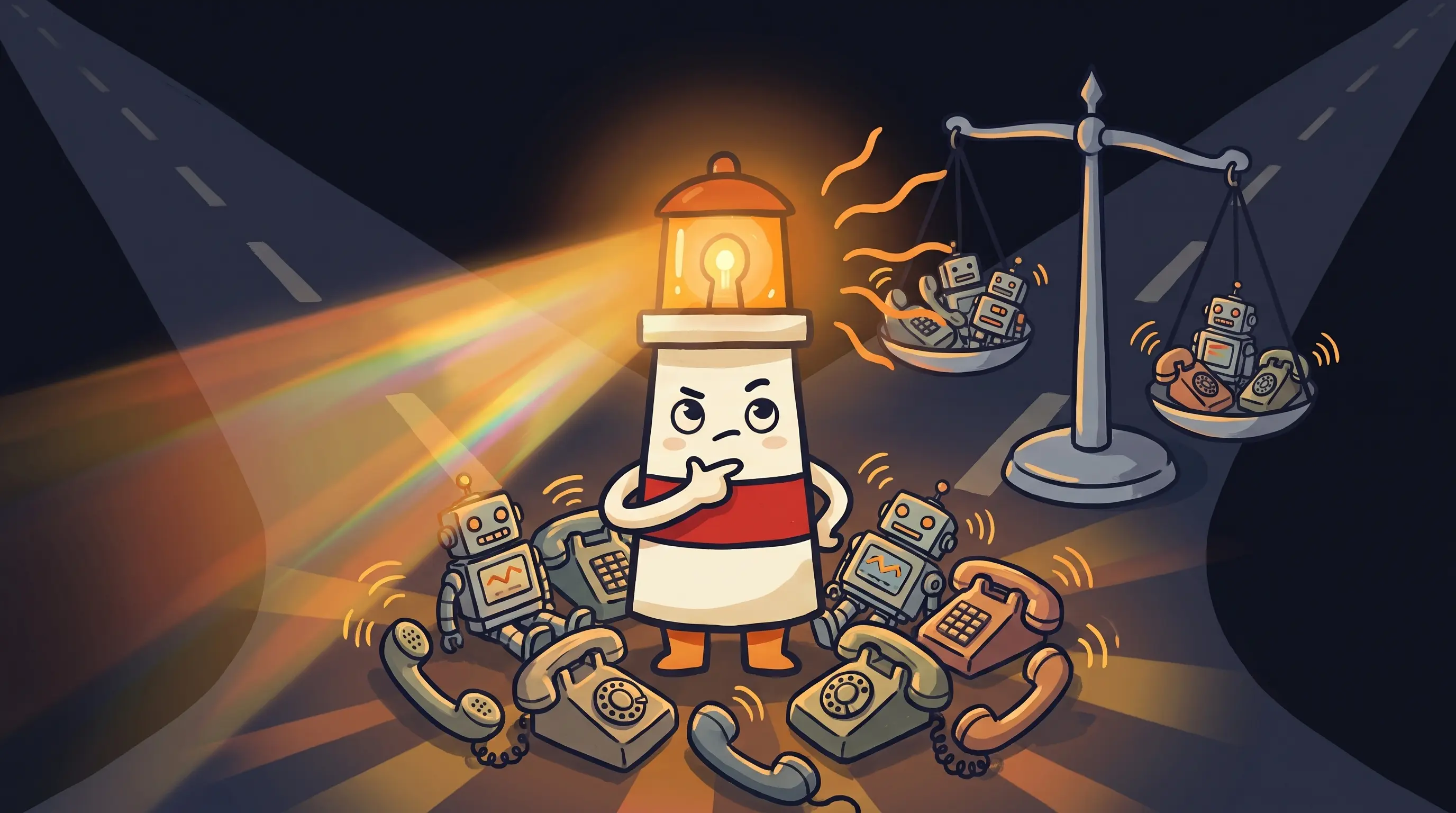
How to Set Up a Personal AI Assistant for Customer Follow-Ups Without Losing Approval Control

On this page
This is a general workflow guide. BrainRoad runs Hermes without an approval queue by default. To make sending unavailable, use an account or credential that cannot send, or work from exported notes and send the reviewed message yourself. A prompt asking a Bot to wait is not an enforced permission boundary.
Your competitor responded to that lead in 30 minutes. You found the inquiry on Thursday - it came in Tuesday. They already signed with someone else.
Now picture the other version: you open your phone at 9am and there are three drafted follow-up messages waiting for your review. One for the quote request from yesterday. One for the client who went quiet two weeks ago. One for the new inquiry that came in overnight. You read each one, adjust the second sentence on the middle draft, and hit approve on all three. Done in four minutes. Nothing went out without you seeing it.
That’s what a working personal AI assistant for small business follow-ups actually looks like. Not AI sending things while you sleep. AI drafting things while you sleep, then checking with you before anything moves.
If you’re exploring personal AI assistants for your business, the setup question isn’t ‘how do I let AI handle my email.’ It’s ‘how do I build a workflow where AI does the drafting and I keep the send button.’ That distinction matters. Here’s how to build it.
What You’ll Have When You’re Done
Before the steps: here’s the end state. A working customer follow-up automation with approval control gives you:
Drafted replies waiting for review — not sent
Every new lead and follow-up gets an AI-drafted message based on your actual customer context, queued for your approval before it goes anywhere.
Context summaries before you act
Before you approve any draft, the system shows you a brief summary of the customer's history, last contact, and current status — so you're approving from context, not guessing.
One consistent follow-up sequence per lead source
Every inquiry from your chosen lead source gets the same structured follow-up process. No leads fall through because you forgot or got busy.
CRM updated automatically after you approve
Once you approve and send, the workflow logs the interaction back to your CRM and updates the customer record. You don't touch the admin.
A review step that can't be bypassed
The approval checkpoint is structural — not a setting you can accidentally skip. Customer-facing messages physically cannot send until you confirm them.
Setup time: roughly two to four hours spread across a week, working in short sessions. You’ll spend most of that time on data cleaning - which is where we need to start, because it’s the step that quietly kills most automations before they ever run.
The Step That Breaks Most Setups Before They Start
Most guides skip this part. They jump straight to connecting tools and building workflows. Then they wonder why the automation produces garbage outputs.
The issue is your source data. If your customer list lives in a spreadsheet with missing names, mixed date formats, blank email columns, or inconsistent company name entries, your automation will fail - not loudly, but quietly. It will draft messages addressed to ‘undefined.’ It will skip contacts with no email. It will send follow-ups to people who already replied, because the ‘last contact’ field was never filled in.
Spend 30 to 45 minutes on this before you touch the workflow. Go through your lead source - whether that’s a spreadsheet, a form tool, or a CRM - and make sure every contact has: a first name, a valid email address, a lead date or last-contact date, and a status field (even if it’s just ‘new’ or ‘open’). That’s the minimum. Everything else - company, deal size, notes - can come later.
This is also a good time to decide on your scope for the first version. The most common mistake in building a customer follow-up automation is trying to cover every lead source, every channel, and every scenario at once. Pick one. One lead source. One CRM. One response rule. One follow-up sequence. One human review checkpoint. A workflow you trust with a narrow scope is worth more than a workflow you don’t trust with a wide one.
The Six-Step Workflow: Personal AI Assistant for Small Business Follow-Ups
Here’s the structure that gives you faster follow-up response while keeping every customer-facing message under your review. It runs in six steps, and the approval checkpoint at step five is non-negotiable.
Capture the lead
A new inquiry hits your chosen lead source — a contact form, a CRM entry, an email intake address, or a manual log. This is your trigger. The workflow starts here and nowhere else.
Clean the record
An automated step normalizes the incoming data: strips extra whitespace, fills in missing fields from defaults, flags contacts with no email address so they don't proceed. This step catches the data problems you didn't clean manually.
AI summarizes the account
Your AI follow-up assistant reads the customer's history from your notes and CRM — previous interactions, what they inquired about, where they are in the process — and produces a brief context summary. This is not sent to anyone. It's for your awareness before you approve the next step.
AI drafts the reply
Using your templates, your tone rules, and the context summary from step three, the AI drafts the follow-up message. It can also classify the customer's current state — new inquiry, warm lead, went quiet, ready to close — and select the appropriate template accordingly. The draft sits in your review queue.
Human approves
You review the draft, the context summary, and the classification. Edit anything that needs it. Then approve. Nothing has gone to the customer yet. This step is structural — the workflow cannot proceed to step six without your confirmation.
CRM and task update
Once you approve and send, the workflow automatically logs the interaction to your CRM, updates the customer's status, and sets a follow-up reminder if the sequence requires one. The admin work is done.
What makes this different from a simple email sequence is what’s happening at steps three and four. The AI isn’t just mechanically sending a pre-written message on a timer. It’s doing the reasoning: summarizing account context, classifying where the customer is, deciding which message fits, and drafting from your actual business information. That reasoning is the work that used to eat your afternoons.
How the Approval Step Actually Works - and Why It Can’t Be Optional
Most people building their first follow-up automation treat the approval checkpoint as a training-wheels feature. ‘I’ll turn it off once I trust the system.’ That’s the wrong model.
The approval step isn’t a temporary safeguard. It’s what makes the workflow trustworthy enough to actually use. Here’s why: customer communication carries relationship risk in a way that internal tasks don’t. A misclassified lead, a draft that uses the wrong tone, a follow-up sent to someone who already replied - these don’t just create awkward moments. They cost you the relationship. An approval checkpoint means those errors get caught before they matter.
78% of customers buy from the company that responds first - but the average small business takes 47 hours to respond to a new lead. The approval model closes that gap without removing the human judgment that protects the relationship. You’re not slower because you approve. You’re faster because the draft is already there, with context, when you wake up.
In practice, this means the draft sits in a designated review location - a dedicated inbox folder, a task in your project management tool, a notification in whatever channel you actually check. The format matters less than the guarantee: you see every draft before it becomes a sent message.
For more on how approval-gated customer follow-up automation works in practice, the guide on AI customer follow-up automation for small business goes deeper on the architecture. The short version: draft first, approve second, send third. That sequence should never be reordered.
Where This Workflow Falls Apart
It’s Tuesday afternoon. You approved 12 drafts Monday morning and haven’t opened the review queue since. There are 9 new drafts waiting. A lead from Friday is now four days old. The approval step is working - you’re just not working the approval step.
That’s the most common failure mode, and it’s not a technology problem. Here are the others:
- Review queue neglect. If you don’t build a daily habit of clearing the approval queue - even 10 minutes a day - drafts pile up and the workflow loses its speed advantage. The follow-up AI did its job. You didn’t.
- Scope creep on version one. Adding a second lead source before the first is stable, layering in personalization before the basic drafts are reliable, connecting channels before the single-channel version runs cleanly. Start narrow. Expand only when the narrow version is boring.
- Bad templates producing bad drafts. The AI drafts from your templates. If your templates are generic, your drafts will be generic. If your templates have placeholders you never filled in, your drafts will have blank fields. Invest 30 minutes writing two or three solid template messages before you automate anything.
- No fallback for edge cases. What happens when a contact has no prior history? What happens when a message comes in that doesn’t match any classification? You need a fallback rule - usually a ‘flag for manual review’ category - for anything the workflow can’t confidently handle.
- Connecting tools before the data is clean. As covered in the prerequisites: messy source data produces broken automations. If you skipped the data cleaning step, go back.
- Trusting the first draft too much. Measure whether follow-ups improve results for your own business. Read each draft before you approve it, at least for the first few weeks. You’ll catch patterns in what the AI gets wrong and fix them at the template level.
How to Know Your Customer Follow-Up Automation Is Working
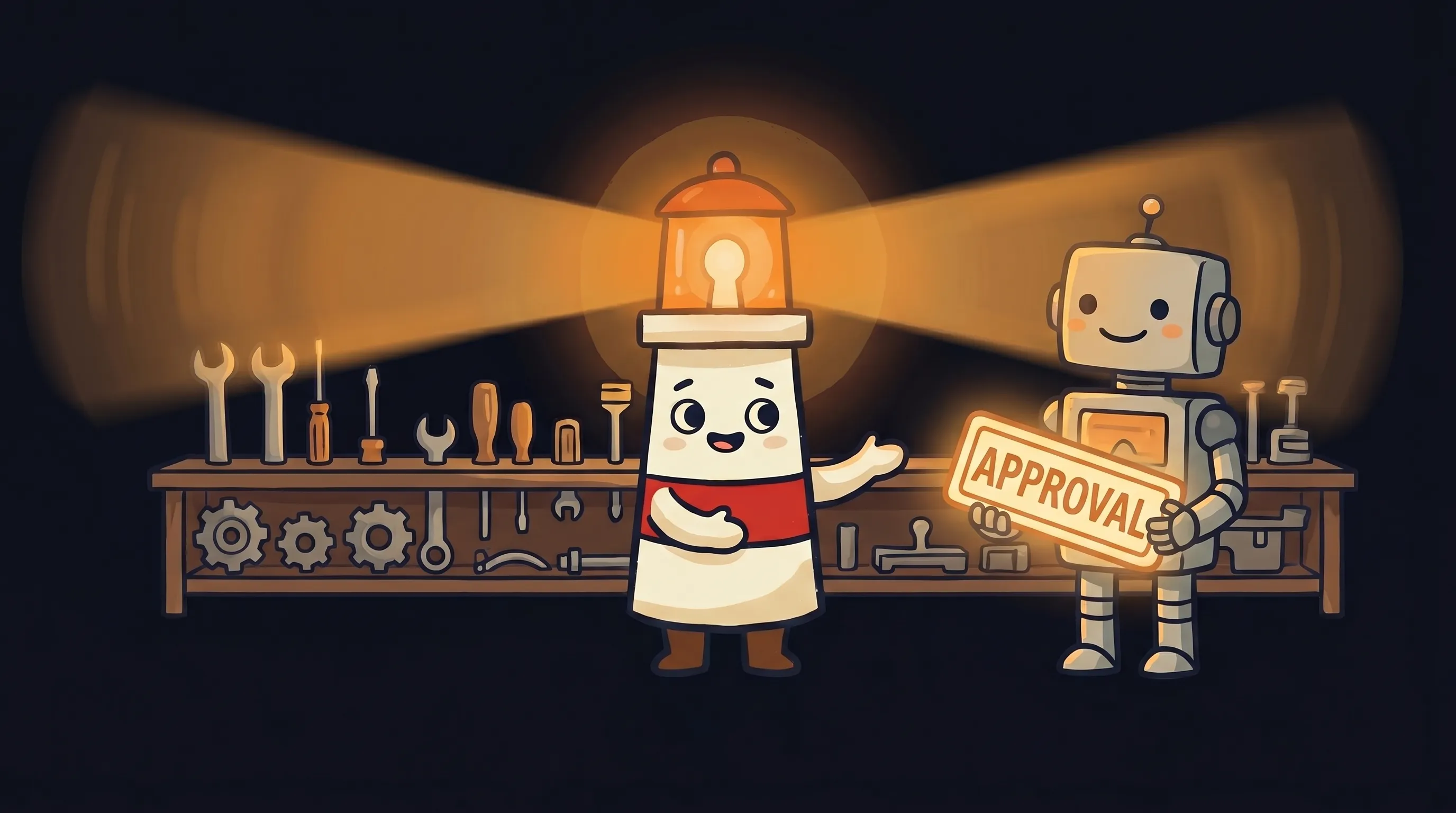 Automation handles the reach-outs - but Beacon reminds you to keep your hand on the switch.
Don’t wait a month to evaluate. Within the first week, you should see clear signals that the workflow is functioning or clear signals that it isn’t.
- Drafts appear within minutes of a new lead - not hours. If you’re waiting more than 30 minutes for a draft to show up in your review queue after a new inquiry, something is broken in the trigger or the data pipeline.
- The context summary is accurate. Open three drafts and read the account summaries. Do they correctly reflect the customer’s history and current status? If the summaries are wrong, the drafts built from them will be wrong.
- The draft matches your tone and templates. Compare the AI draft to the template you provided. Is it consistent? Does it sound like you? If it sounds like a generic AI email, your templates need more specificity.
- CRM updates after you approve. Check two or three contacts after you’ve approved their drafts. Is the interaction logged? Is the status updated? Is the follow-up reminder set? If the CRM isn’t updating, the workflow is broken at step six.
- No customer-facing messages sent without your action. This is the non-negotiable check. Search your sent folder and CRM for any messages that went out without a corresponding approval action on your part. If you find any, stop the workflow and fix the approval checkpoint before you continue.
- You’re reviewing drafts daily without it feeling like work. A healthy workflow should add less than 15 minutes to your morning. If reviewing drafts takes longer, either the queue volume is too high, the drafts need too much editing, or the templates need improvement.
Your First-Week Customer Follow-Up Automation Checklist
Run through this in order. Each step builds on the previous one. Don’t skip ahead.
- Day 1 - Clean your lead source data (30-45 min). Open your primary lead source and confirm every contact has: first name, valid email, a lead or last-contact date, and a status field. Fix or flag anything missing. Export a clean version before you connect it to anything.
- Day 1 - Write two follow-up templates (20-30 min). One for new inquiries. One for leads that went quiet after initial contact. Be specific about your service, your tone, and the next step you’re asking them to take. Generic templates produce generic drafts.
- Day 2 - Set up your lead capture trigger (30-60 min). Connect your chosen lead source to the automation tool you’re using. Test it by submitting a dummy inquiry and confirming the workflow fires. If you’re on an AI agent platform with a setup wizard, this step is usually under 30 minutes.
- Day 2 - Configure the AI summarize and draft steps (45-60 min). Input your templates and tone rules. Define the customer classification categories (new, warm, quiet, ready to close). Run a test with a real past contact and review the output. Adjust until the drafts are 80% usable without editing.
- Day 3 - Build the approval checkpoint (30-45 min). Set up the review queue in whatever location you actually check daily - email folder, task tool, notification channel. Test the full flow: new lead → draft appears in queue → you approve → message sends. Confirm the approval step cannot be bypassed.
- Day 3 - Configure CRM logging (20-30 min). After a test approval, verify the interaction is logged in your CRM and the contact status is updated. Set the follow-up reminder rule if your sequence requires a next touch.
- Days 4-7 - Run the workflow on real leads, review daily. Spend 10-15 minutes each morning clearing the draft queue. Note any patterns in what the AI gets wrong - classification errors, tone mismatches, template gaps - and fix them at the source. If a draft needs more than two edits before it’s sendable, the template needs work.
- End of week 1 - Decision checkpoint. Is the workflow saving you time? Are the drafts getting better? Are you actually using it? If yes, keep it running as-is for another two weeks before expanding. If the drafts are too far off, fix the templates. If the queue is building up unreviewed, build a 10-minute daily review habit before you add any complexity.
What This Means for Your Follow-Up Stack
- The approval checkpoint isn’t a training-wheels feature - it’s the structural guarantee that makes the workflow trustworthy enough to actually use long-term.
- Data cleaning is the prerequisite nobody mentions. A follow-up automation built on messy source data will fail quietly before it ever reaches a customer.
- Start with one lead source, one CRM, one response rule, one follow-up sequence. The narrow version you trust is worth more than the wide version you don’t.
- Small businesses now spend 36% of their workweek on administrative tasks - over 15 hours. A working follow-up workflow reclaims a meaningful chunk of that, specifically in the time spent tracking who needs a reply and what to say.
- The AI’s job in this workflow is the reasoning: summarizing context, classifying customer state, drafting from your templates. Not the mechanical sending. That distinction is what separates a useful follow-up tool from an automated spam machine.
- 68% of US small businesses were using AI regularly as of 2026. The ones getting value from it built workflows with human approval baked in - not workflows that ran autonomously and created relationship problems they had to clean up later.
Frequently Asked Questions
Will the AI send follow-up emails without my approval?
Not if you build the workflow correctly. The approval checkpoint in step five is structural - meaning the workflow physically cannot proceed to sending without a confirmation action from you. The AI drafts and queues messages. You approve and send. If you’re evaluating a tool and you can’t find a clear explanation of how the approval step works, that’s a red flag worth investigating before you connect it to real customer data.
How long does it take to set up an AI follow-up assistant for customer follow-ups?
Realistically, two to four hours spread across a week. The biggest time investment is data cleaning (30-45 minutes) and writing good templates (20-30 minutes). The actual workflow configuration - connecting your lead source, setting up the AI draft steps, building the approval queue - typically takes one to two hours if you’re using a tool with a setup wizard. Budget an additional week of daily 10-15 minute review sessions before you consider the workflow stable.
What if a customer message doesn't fit any of my templates?
Build a fallback category into your workflow. Label it ‘flag for manual review’ or similar. Any message the AI can’t confidently classify drops into this category instead of forcing a draft from the wrong template. You handle these manually. Over time, if certain types of messages keep landing in the fallback bucket, that’s a signal to add a new template category for them.
Do I need a CRM for this to work?
Not necessarily for the first version. You can run the basic workflow - capture, draft, approve, send - using a spreadsheet as your ‘CRM’ for tracking. The CRM logging in step six becomes more valuable as your lead volume grows and you need a reliable history of who received what and when. If you’re handling more than 20-30 new leads per month, a proper CRM is worth the investment before you scale the automation.
What's the difference between a customer follow-up automation and a simple email sequence?
An email sequence sends pre-written messages on a fixed schedule, regardless of context. A customer follow-up automation with AI does the reasoning first: summarizing the customer’s history, classifying their current state, selecting the right message, and drafting from your templates and business context. The output isn’t a timer-triggered blast - it’s a context-aware draft waiting for your review. That difference matters most for customers who’ve already been in contact with you and need a reply that reflects the actual conversation history.
How do I know if my AI drafts are good enough to approve quickly?
A draft is working well when it needs fewer than two edits before you’re comfortable sending it, and those edits are small (a word choice, a name, a specific detail). If you’re rewriting the whole message, your templates need more specificity. Track how long you spend on each draft in the first week. If it’s taking more than two minutes per draft, that’s a signal to improve the source templates rather than manually fixing each output.
Sources
- AI Follow Up Email Guide: Templates That Convert 2026 - Tomba Blog
- Business Customer Follow Up Automation Checklist (2026) - US Tech Automations
- Make AI Lead Follow-Up Automation for Small Business - The Pro Toolkit
- How to Build an AI Automation Workflow for Lead Follow-Up - AI Business Boomer
- AI Personal Assistant for Small Business (2026 Guide) - Arahi AI
- Personal AI Assistants for Small Business Owners (2026) - Brothers Automate
- How to Automate Customer Follow-Up Emails with AI - Dhivox
- How to Automate Customer Follow-Up Workflows with AI - Neuwark